Model Styles
A Style is a named, reusable CSS format, defined once and available across every Workview in the model - not scoped to whichever set it was created from.
Workviews only
Model Styles, as described on this page, are used in Workviews. Cards have their own, separate Style Editor with its own attribute-by-attribute UI - see Styles for that workflow.
Managing styles
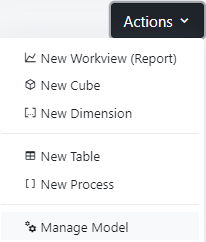
Styles are managed from the Manage Model page, accessible via the model's Actions menu.
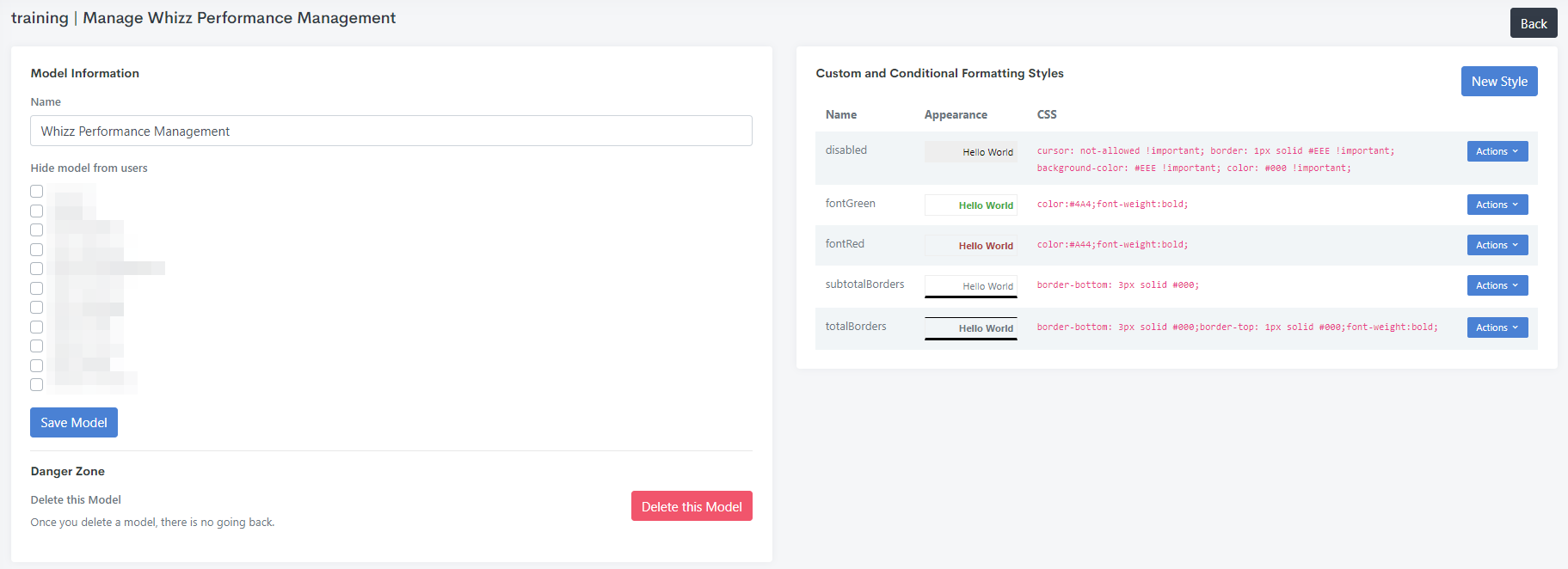
The Custom and Conditional Formatting Styles panel lists every style defined in the model, its live preview, and its underlying CSS:
Using styles in a Workview
In a Workview, a style is applied to a set via Style Cells or Style Headers, or conditionally per element via Apply Style Using Formula.
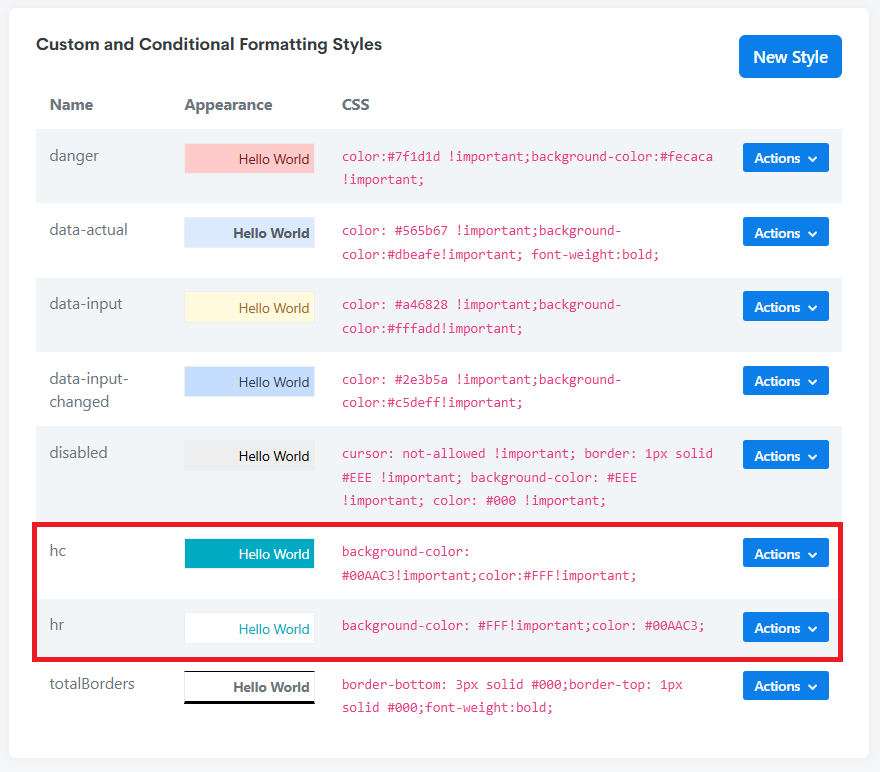
Reserved names: hc and hr (Workviews only)
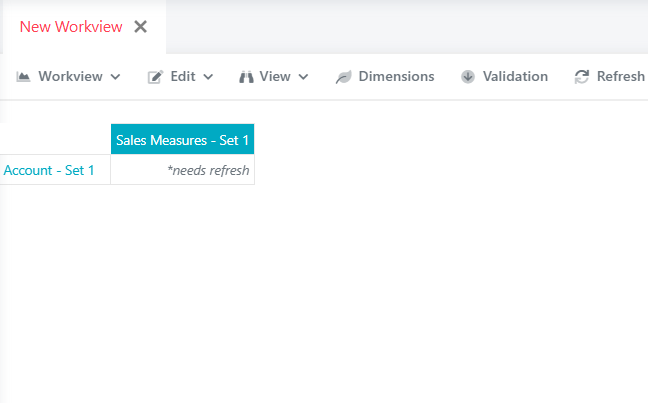
A style named exactly hc is applied automatically to every column header across the model by default, and a style named exactly hr is applied automatically to every row header by default - without needing to add a Style Headers instruction to each set. Useful for a baseline header look you want everywhere, with individual sets only needing an override where they should differ from it. This automatic behaviour is specific to Workviews.