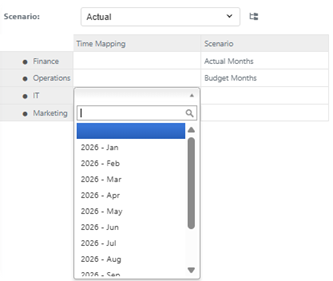
Cascading Validation
Why a Cascading Validation
Cascading validations allow the creation of a list based on the value of another cell.
Creating a Cascading Validation
Consider a with a measure and corroponding cell populated with Actual Months or Budget Months, where the set of valid months on the current cell should differ depending on whether the relative Scenario measure cell is Actual Months or Budget Months.
Here's how it works in practice, using the hierarchy "Time by Scenario" as an example.
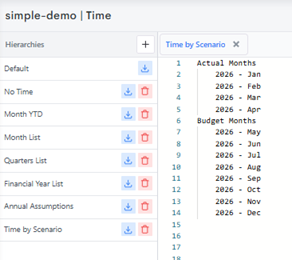
In this case, the "Time by Scenario" hierarchy contains two parents: one grouping "Actual Months" and one grouping "Budget Months".
In the workview, open the Validation tab to configure a rule against the Time Mapping measure. This time the rule is defined using the Parent Measure and Level fields, referencing the name of the Measure, in this case Scenario*, to determine which parent's children should be valid.
INFO
- The Level will always be set to the level below where the Parent Measure sits. For example, Actual Months is at the top level, and thus the Level must be set to "The top level -1".
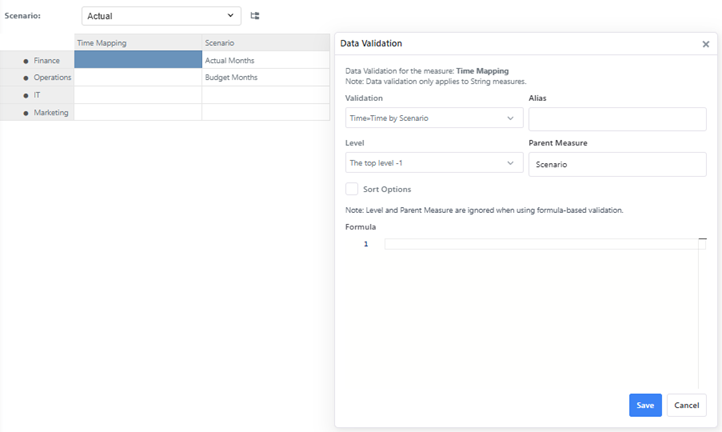
Once saved, changing the value of the Scenario cell changes the list of valid options presented at data-entry:
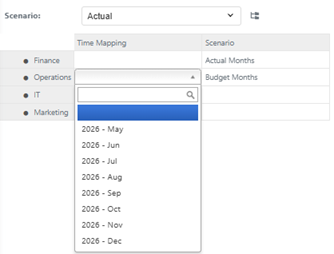
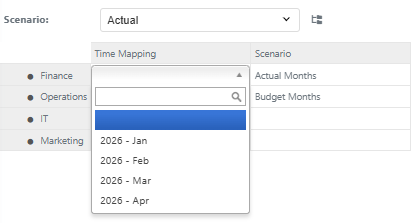
The validated string measure now displays a dropdown list of Months scoped to the value of the relative cell of Scenario.
DANGER
- If the relative Parent Measure cell is left unpopulated, all items will be available for selection based on the current rules.