
Managing a Dimension Manually
Clicking Manage on an existing dimension within the model page will open the Dimension Manager for the selected dimension. It's a single page exposing everything needed to work with the Dimension manually - Hierarchies, Aliases, and quick navigation to other Dimensions in the Model - and it opens with the Default Hierarchy loaded automatically, since that's the one edited most often.
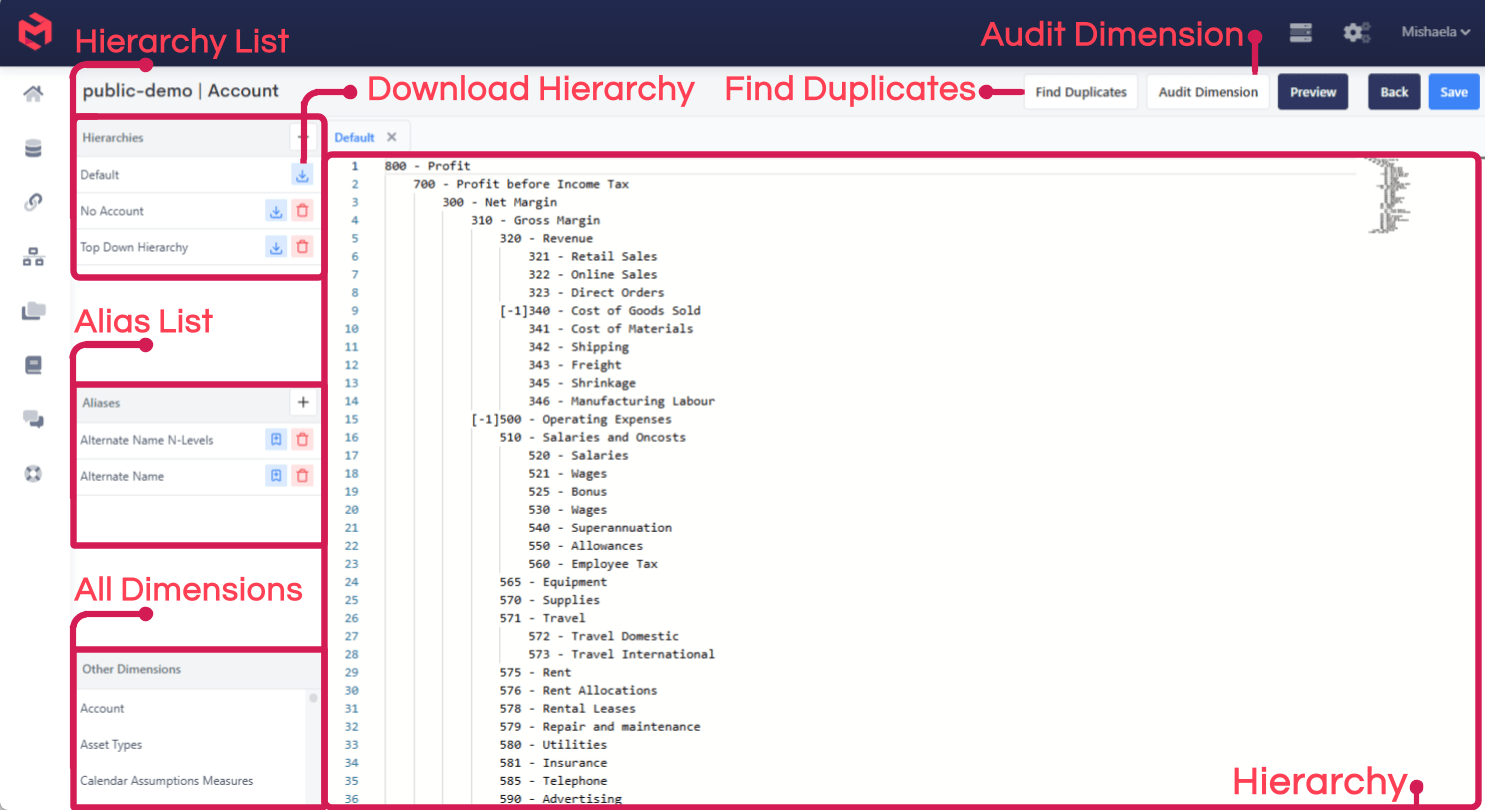
There's no separate page listing every leaf Element in a Dimension flat - the editor is Hierarchy-centric, so the closest equivalent is opening a Hierarchy that happens to contain all of them (typically a dedicated flat Hierarchy created for that purpose, like All Accounts), or using the Audit tool below.
Editing a hierarchy
When editing a hierarchy MODLR provides a text area and interprets tab depth to define the tree of elements. This works well when copying and pasting hierarchies from MS Excel workbooks - paste a tab-indented range straight in and it becomes the Hierarchy structure, with no drag-and-drop required:
All Departments
    Finance
    Marketing
    Sales
        Sales - Online
        Sales - Retail
    Operations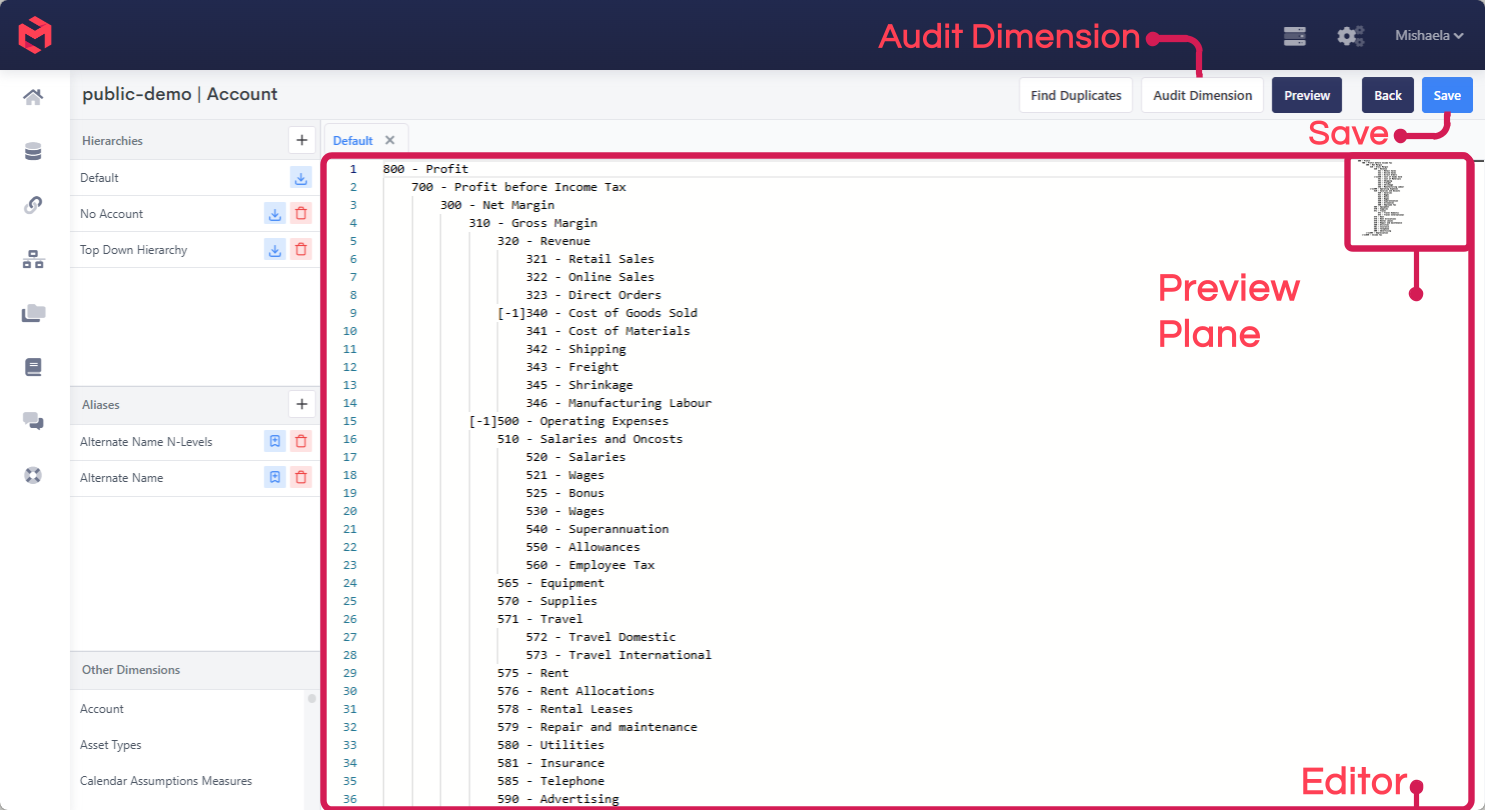
Saving a Hierarchy creates any new Elements, links them according to the indentation, and removes from this Hierarchy any Element no longer present in the text - removing an Element from a Hierarchy doesn't remove it from the Dimension itself; see Auditing a dimension below for what happens to it instead.
Additional Hierarchies can be created alongside Default from the same editor, each with its own tab-indented structure - the same leaf Elements can appear in any number of Hierarchies, which is the mechanism behind the multiple-roll-up pattern described in Designing a Dimension.
Two modifiers can be appended to an Element name in the text editor:
[-1]sets the Element's consolidation weight to -1 for this placement, subtracting it from its parent instead of adding it - useful for a variance Hierarchy like:The weight is part of the placement, not the Element itself - the same Element can carryVariance Act vs Bud Actual Budget[-1][-1]in one Hierarchy and the default weight of1in another.[s]creates the Element as a string Element rather than the default numeric one - relevant on a Measures Dimension, where aCommentorDescriptionmeasure needs to hold text rather than a number:Once created, an Element's type is fixed and shared across every Hierarchy that contains it.Amount Comment[s] Description[s]
Aliases
Aliases - alternative names for Elements - are managed alongside Hierarchies in the same editor, and a Dimension can carry any number of them.
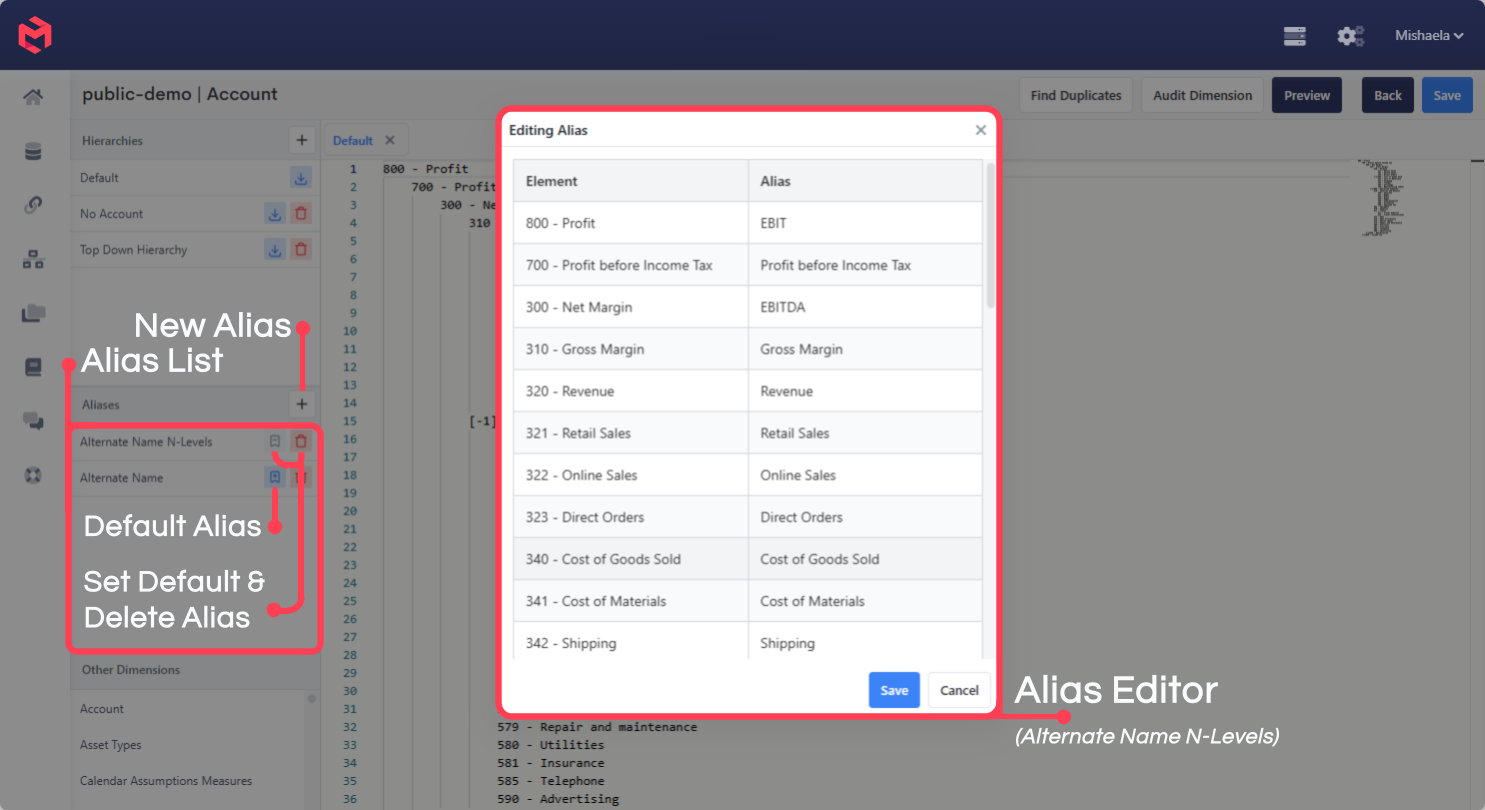
One Alias can be marked default. The default Alias is what new Workviews built from any Cube using this Dimension display automatically, in place of the principal Element name - so an Account Dimension using codes as principal names (6-10010, 6-10020) with a Code - Name Alias (6-10010 - Services Revenue) set as default means every new Workview reads correctly without a modeller having to remember to switch the display Alias. This only affects new Workviews - existing ones keep whatever Alias they were already configured with. See Naming elements from a source system for the pattern this is designed to support.
Editing Alias values is done Element by Element through this editor, which is fine for small Dimensions but doesn't scale - for anything with more than a handful of Elements, populate Aliases from a Process instead, using alias.set.
Finding duplicates within a hierarchy
The dimension page's Find Duplicates action checks the currently open Hierarchy for any Element that appears in it more than once.
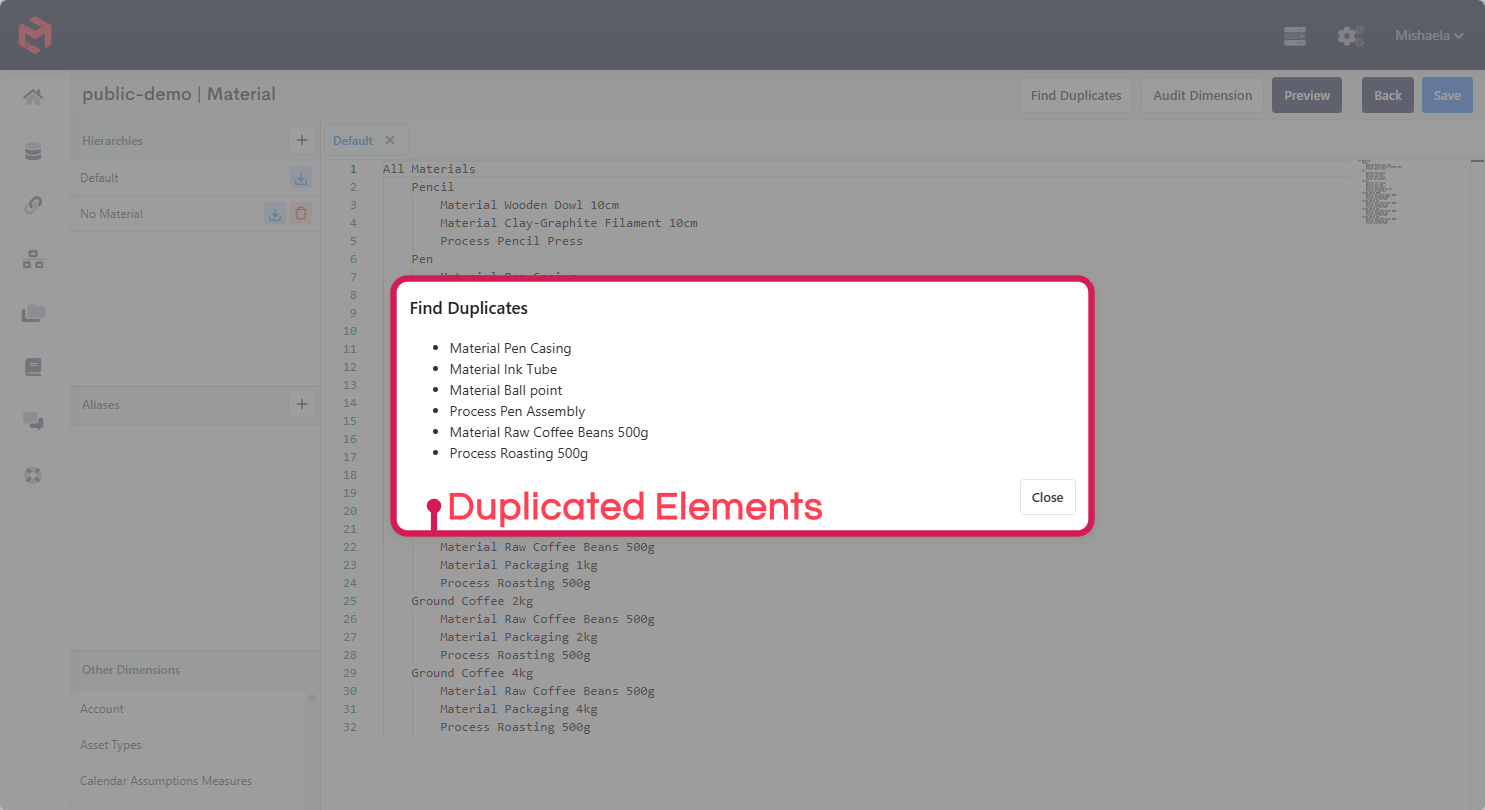
Most duplicates inside a single Hierarchy are unintentional - an Element placed under two different parents by mistake while editing manually, a scripted Process whose logic missed an edge case, or two Hierarchies merged from overlapping sources. There are legitimate reasons for an Element to appear twice (a cost that genuinely contributes to two different totals), but they're rare enough that Find Duplicates is best treated as a diagnostic for catching mistakes, not something exercised routinely. When a duplicate is unintended, the fix is usually to edit the Hierarchy and remove the redundant placement.
Exporting a hierarchy to CSV
Each Hierarchy in the editor has a download action that exports it as a CSV file:
| Field | Meaning |
|---|---|
parent | The parent Element name. |
child | The child Element name. |
weight | The consolidation weight of the child under the parent - 1, or -1 for subtraction. |
type | The Element type (N for numeric, S for string). |
position | The position of the child under the parent. |
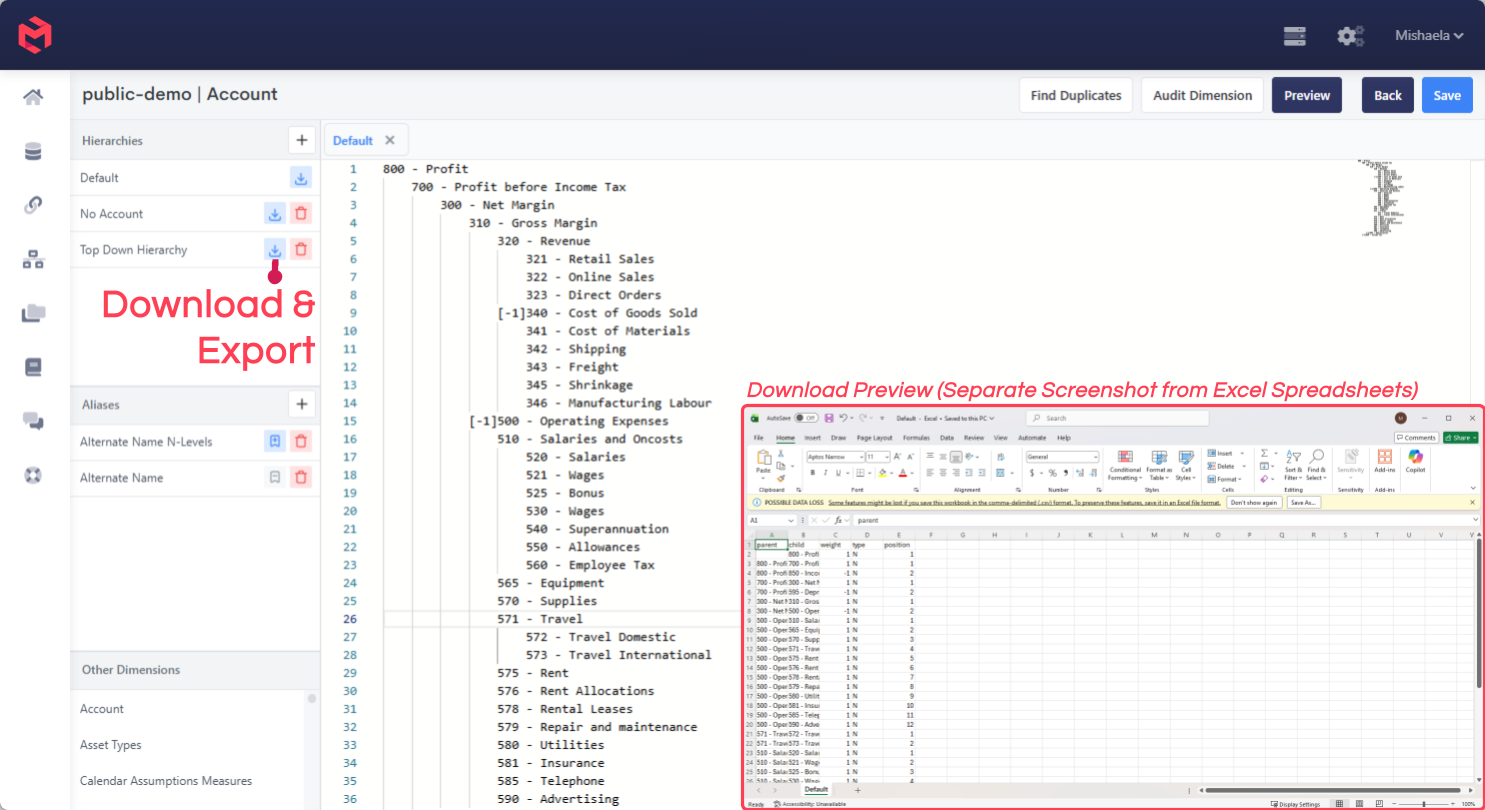
This is useful for sharing a Hierarchy with a stakeholder outside the platform, diffing two versions of a Hierarchy, backing one up before a major change, or feeding it into another tool or another MODLR Model. It's also the same shape that Hierarchy-building Processes typically read from when populating Dimensions automatically.
Auditing a dimension
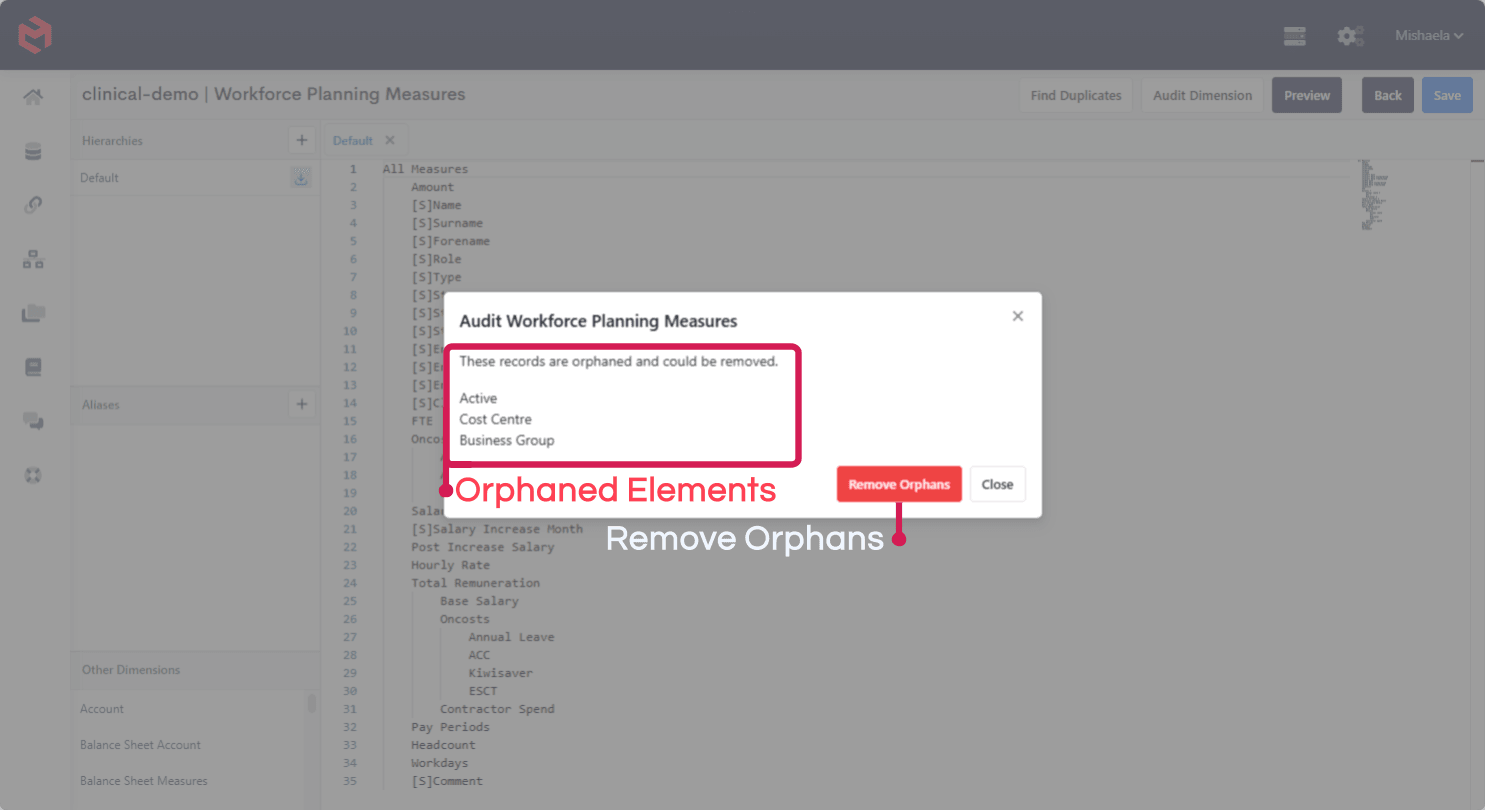
Removing an element from a hierarchy doesn't remove it from the dimension - it becomes an orphaned element: still present in the dimension's element list, with any data against it untouched, but no longer reachable through any roll-up. The Dimension Manager's Audit Dimension action finds these orphans and can remove them from the dimension.
WARNING
Removing an orphan is not the same as removing its data. The element leaves the dimension's list immediately, but its data stays in cube storage until the server is next restarted - so an orphan removed by mistake can be fully undone by re-adding it to a hierarchy before that restart, but the data is gone for good the moment the server restarts. See How to remove unused data from a cube for the full workflow.