
Formulas in Cards
In a Card, a formula doesn't calculate a cell. It supplies the value of a component property - a heading's text, a bar's colour, whether a container is visible. The formula is evaluated when the card renders, so the property can respond to the card's context rather than being fixed when it was built.
This is the main difference from a cube formula, which produces a number for every cell matching its restrictions. See Formulas for the three kinds side by side.
Applying a formula to a property
Properties are grouped in the Properties panel - Other, Styling, Interactivity, Layout. Each one can either be typed into directly, or driven by a formula using the formula icon to its right.
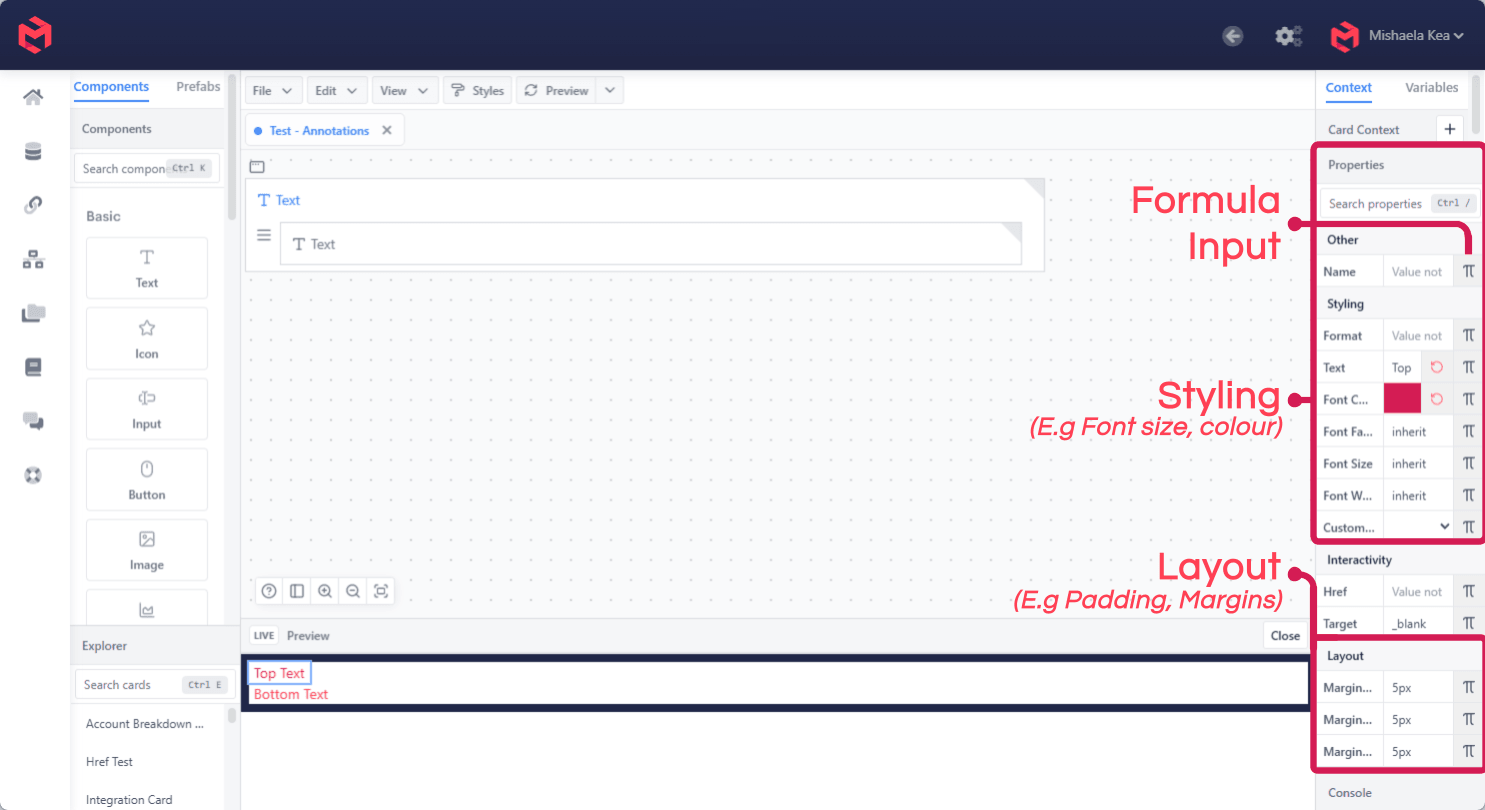
Clicking the icon opens the Apply Formula editor.
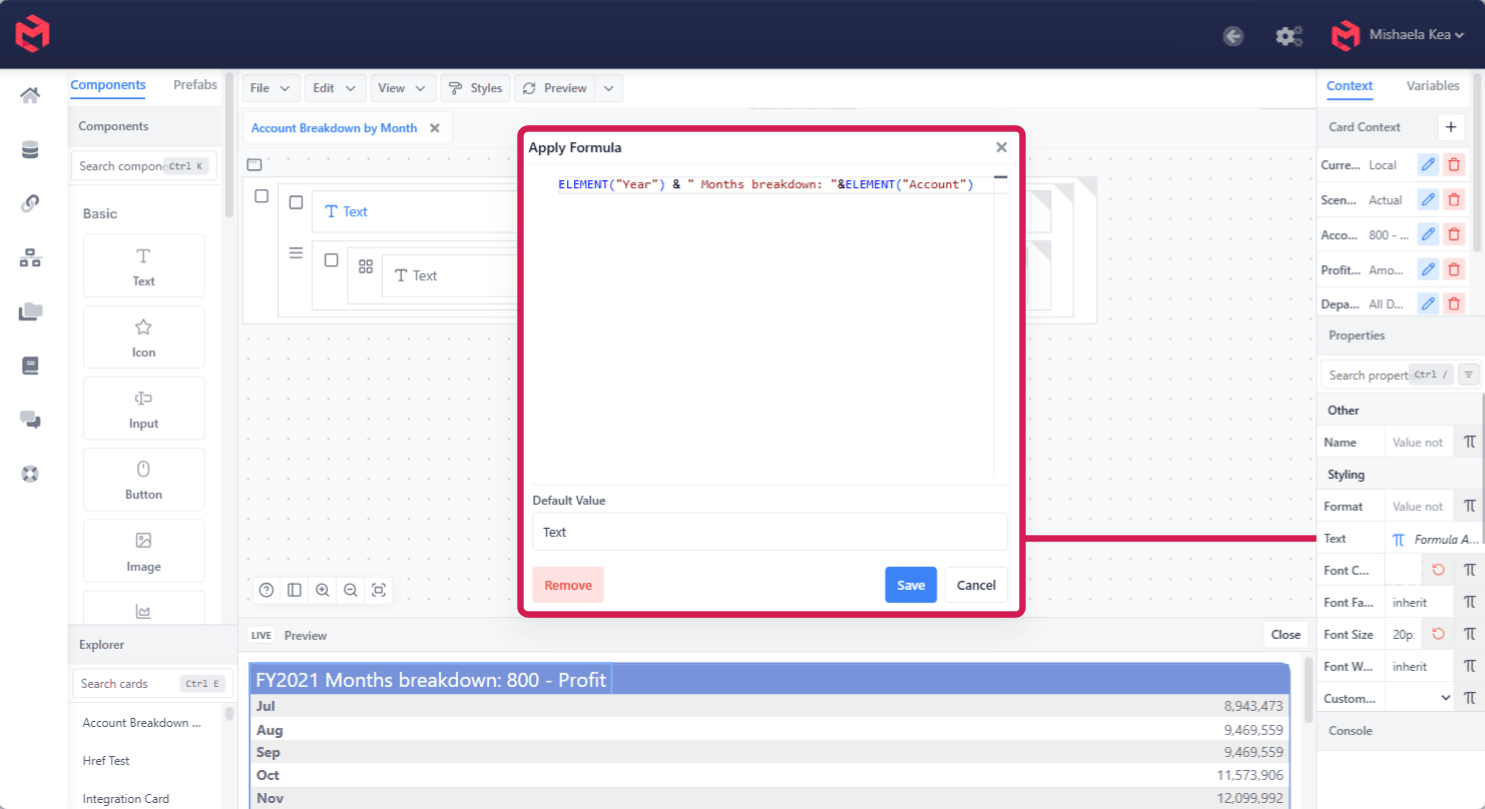
Once a property is driven by a formula its input box is greyed out and can't be typed into - that greying is how you tell at a glance which properties are formula-driven. Remove clears the formula and returns the property to direct entry.
Default Value is what the property falls back to when the formula can't resolve. It's worth setting: a property with no default and an unresolvable formula renders as nothing, which is harder to diagnose than a visible fallback.
Reading context
ELEMENT returns the element currently selected on a dimension, so a heading can name what it's showing rather than stating it:
"Revenue for " & ELEMENT("Department") & ", " & ELEMENT("Month")& concatenates, exactly as in a cube formula.
Beyond the model's own variables, cards can read a set of Reserved Variables without defining them first - the current user, the card's rendered size, and variables scoped to particular components such as List, Table, Chart and Tree Graph.
Colouring by position
The component-scoped variables are what make a formula useful for styling, because a card doesn't know in advance how many plots or series it will render. VARIABLE("plot-index") and VARIABLE("series-index") give the current item's position, and SPLIT picks a matching entry out of a list:
SPLIT(
    "#6B7280,#2563EB,#CCCCCC"
,
    ","
,
    NUMBER(VARIABLE("plot-index"))
)
Plot 0 gets #6B7280, plot 1 gets #2563EB, and so on. Put this on Plot Color Formula to colour by plot, or on Series Color Formula with series-index to colour by series. The Chart component guide has a worked waterfall built this way.
When a formula doesn't resolve
A card formula fails quietly and the component will typically renders empty. The Card Debugger is the way to see what a formula actually evaluated to at render time, rather than inferring it from the result.
Related
- Formulas - cube, card and set instruction formulas compared
- Card component basics - the Properties panel in context
- Reserved Variables - the built-in variables, including the component-scoped ones
- Card Debugger - inspecting what a card formula resolved to
- Chart component - dynamic plot and series colouring
- Security-based conditionality - driving visibility from the current user