
Testing and explaining formulas
There are two moments worth checking a formula: before you save it, from inside the Formula Editor, and after the fact, when a number on a report isn't what you expected. MODLR uses the same evaluation trace for both.
Most of this page is about cube formulas, which have the richest tooling. Card formulas and set instructions are checked differently - both are covered at the end.
Before saving: Validate and Test formula
The expand icon on the Expression header opens the editor full screen, which is where a formula is checked before it's committed.
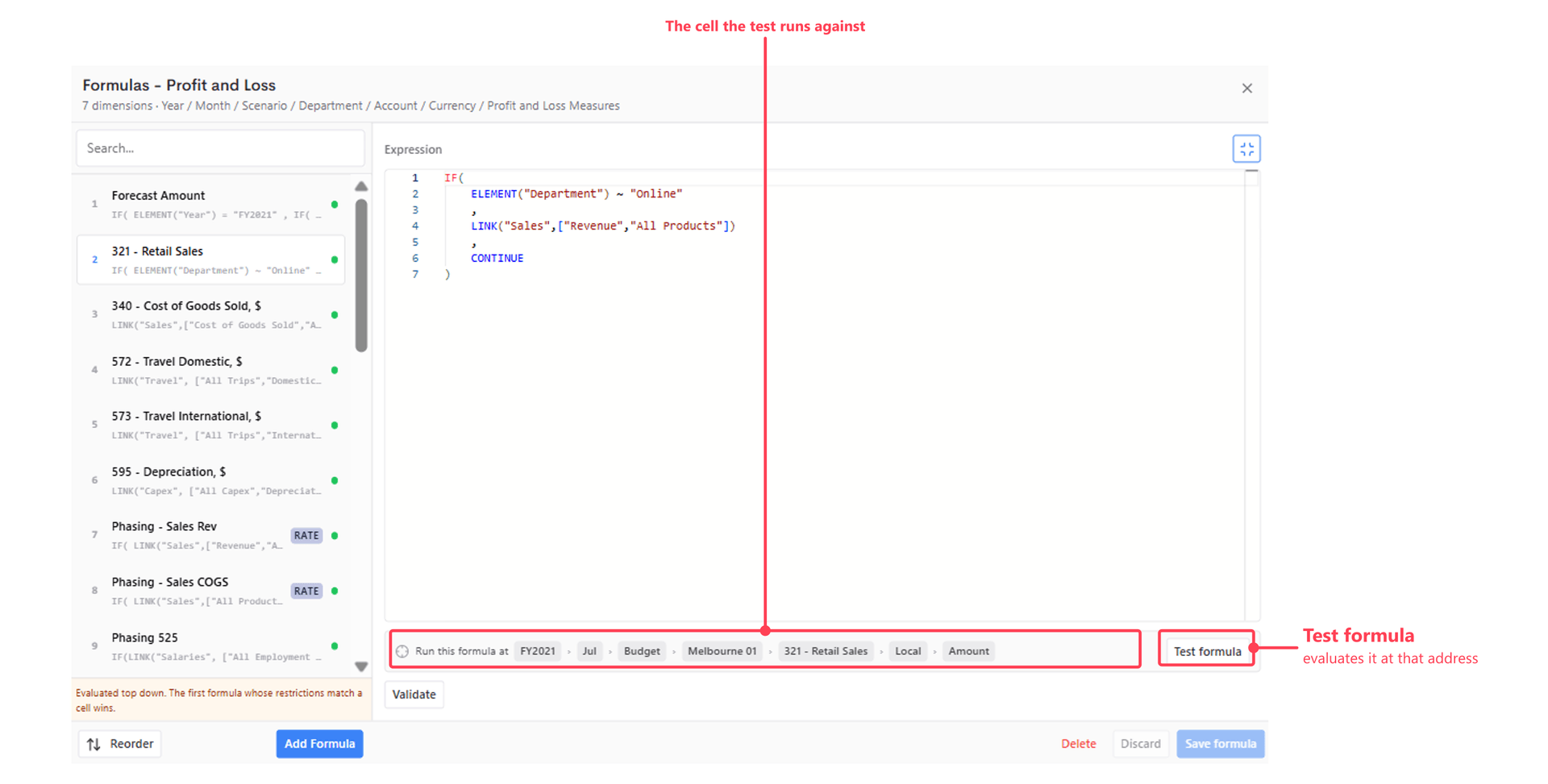
The bar beneath the expression sets the address the test runs against - one element per dimension. Two checks are available:
| Action | What it does |
|---|---|
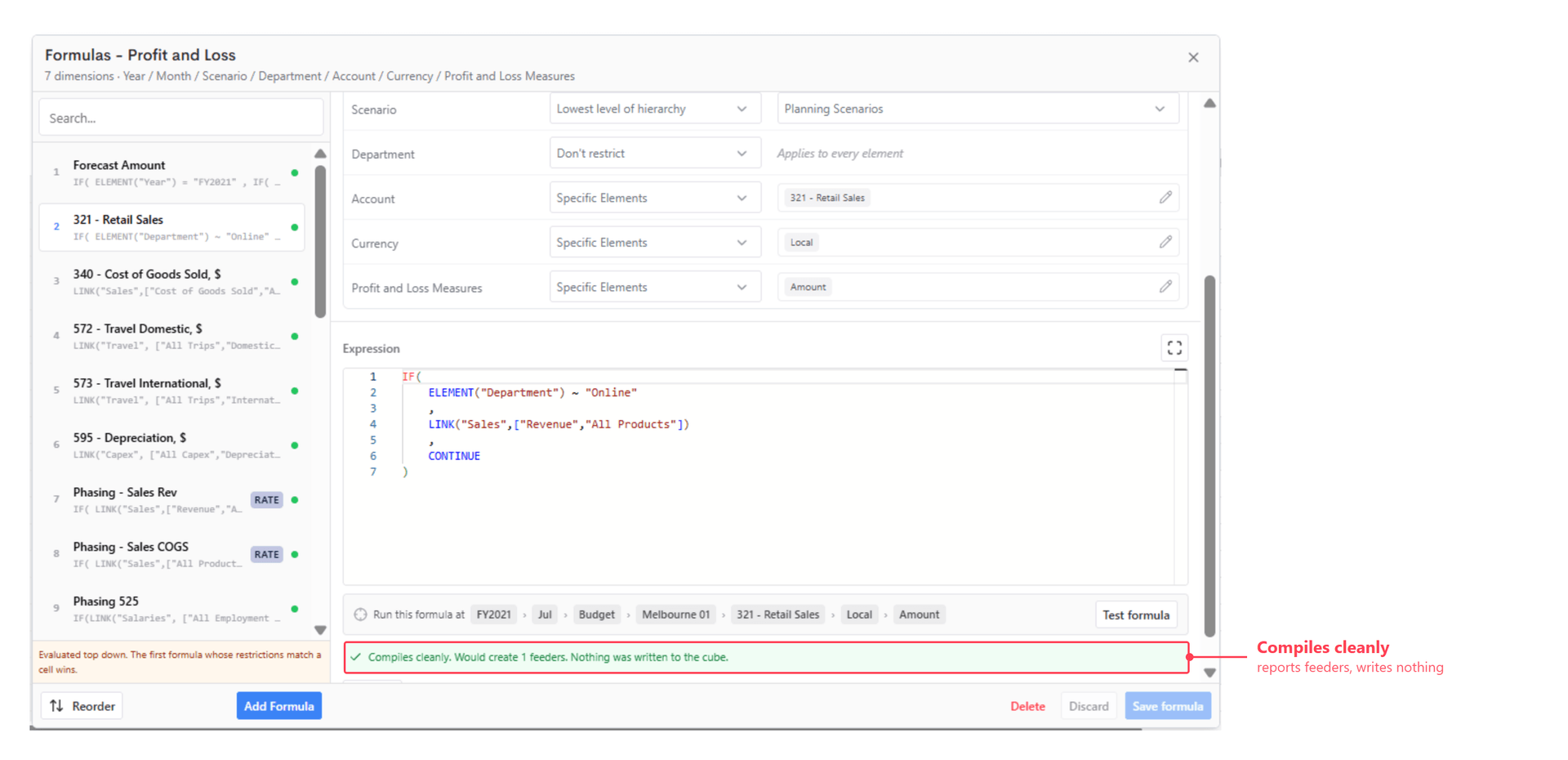
| Validate | Compiles the formula and reports what it would do. Nothing is written to the cube. |
| Test formula | Evaluates the formula at the address shown and opens the Formula Evaluation dialog. |
Validate reports cleanly compiled formulas along with the number of feeders they would create:
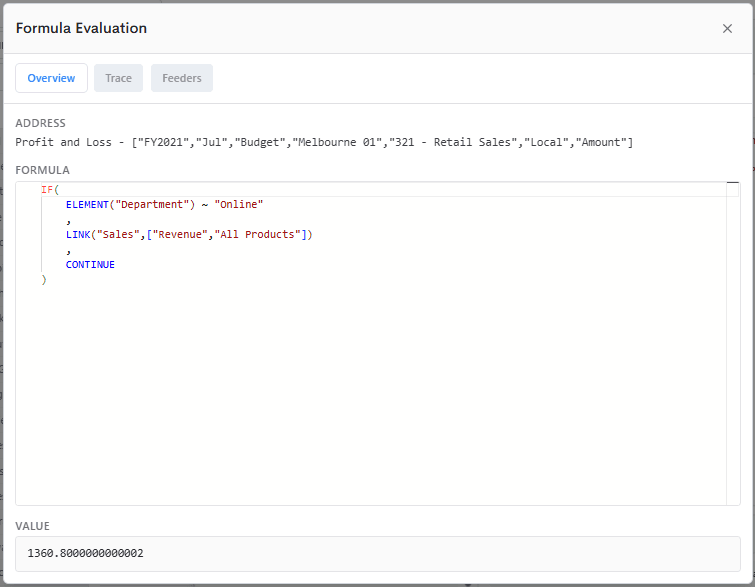
The Formula Evaluation dialog
Test formula opens a dialog with three tabs.
Overview shows the address, the formula and the value it produced:
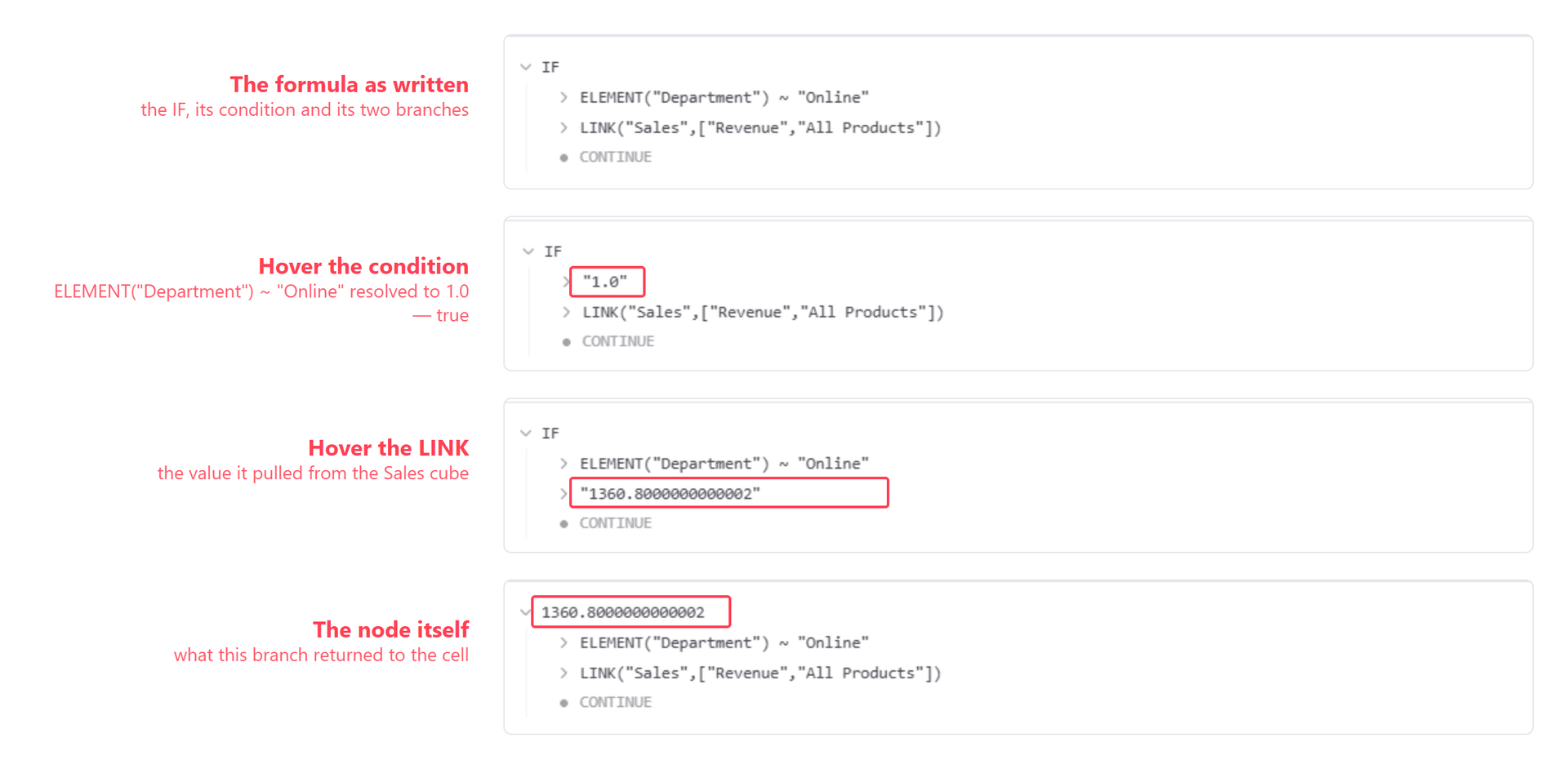
Trace breaks the evaluation down term by term, so you can see which branch of an IF was taken and what each function returned. The tree is interactive: hovering a term swaps it for the value it resolved to, so each part can be checked in turn rather than reasoning about the whole expression at once.
Feeders shows the feeders the formula generates and the resulting feed ratio - useful for spotting a formula that will feed far more cells than it needs to:
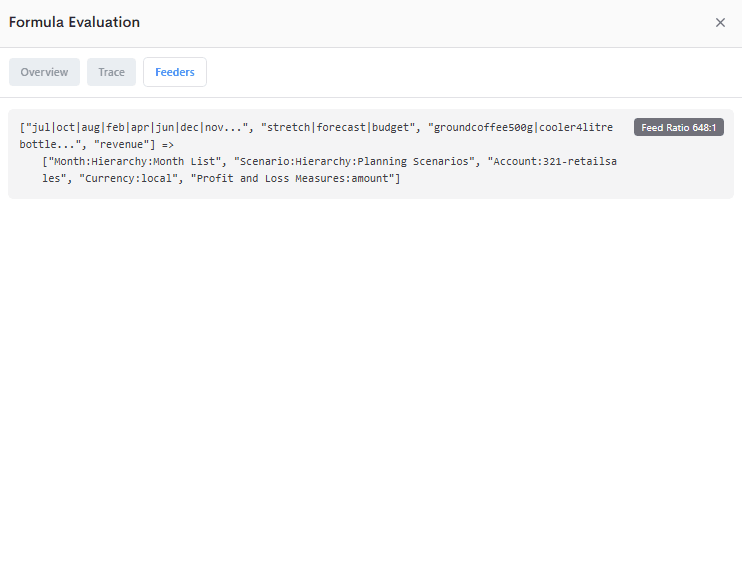
Watch the feed ratio
A high feed ratio means one source cell is feeding a great many target cells. That is the usual cause of a model that calculates slowly - see How to Optimise Your Model.
After the fact: Explain Value
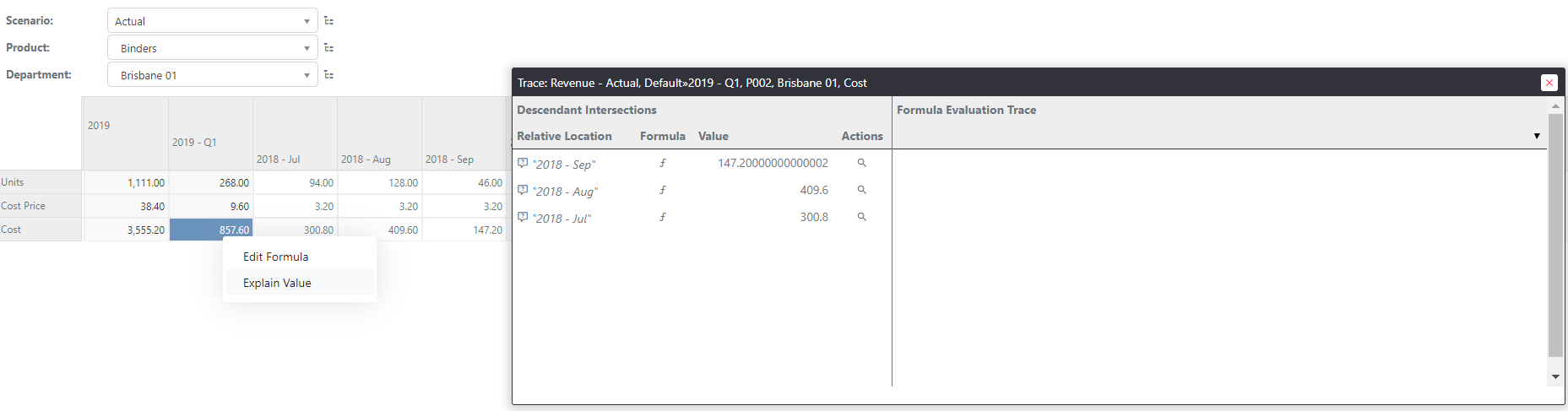
Outside the editor, the same trace is reached from the report itself. Right-click a calculated cell and choose Explain Value.
TIP
This works in both the Modeller Workview editor and in a Workview displayed to Collaborators inside an Application, so a user can explain a number without needing access to the model.
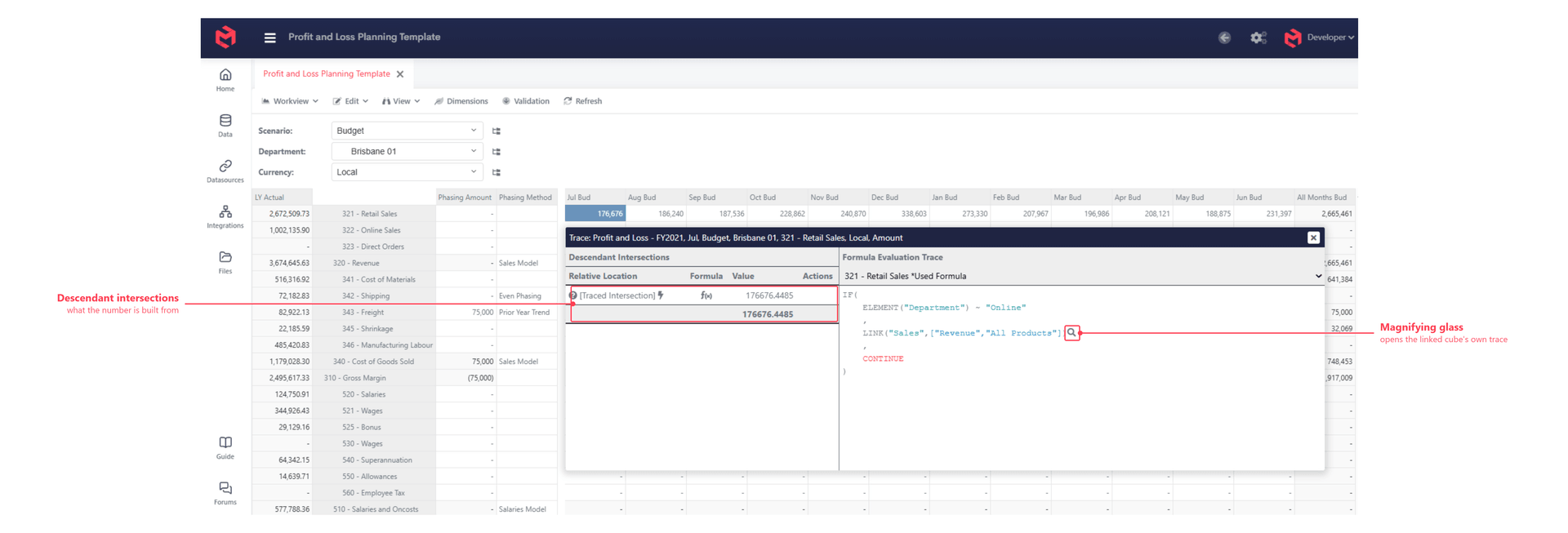
The trace opens on that cell. The left pane lists the descendant intersections the number is built from; the right shows the formula that produced it, evaluated against that cell.
Following a value into another cube
Where a formula pulls from another cube with LINK, the trace doesn't stop at the link. A magnifying glass sits beside the LINK in the evaluated formula; clicking it opens the trace for the cell in the source cube.
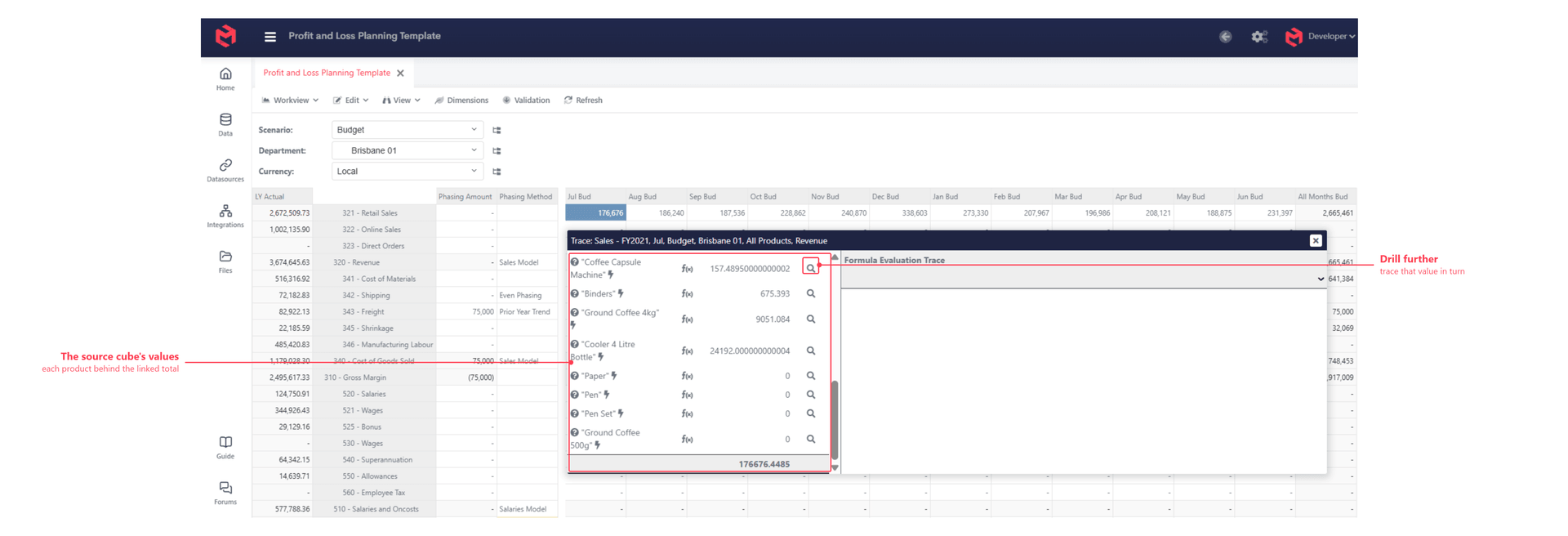
Every row there carries its own magnifying glass in turn, so a value can be followed through as many cubes as it passes through, down to the data actually entered. This is the quickest way to answer "where did this number come from" across a linked model.
Testing a card formula
Validate and Test formula belong to the Formula Editor, so they only apply to cube formulas. A card formula drives a component property and is evaluated when the card renders, so it's checked in the card itself.
The Card Debugger is the tool for this: it reports what a formula actually resolved to at render time, rather than leaving you to infer it from the rendered result. That matters because a card formula fails quietly - an unresolvable formula falls back to its Default Value, or renders as nothing at all.
Testing a set instruction
Set instructions have no single test surface, because they run in several - Workviews, Card components, Mappings, Dashboard selectables and the Excel SetInstruction function. How you check one depends on where it's evaluating, and the goal in each case is the same: get the expression to evaluate in the same context the set sees.
- In a Card - drop a Text or Debugger component immediately beside the component whose set you're testing, so it renders under the same context, and put the instruction's expression on it. Whatever the text renders is what the instruction is working from.
- In a Workview - paste the instruction's argument into a cube formula and run Test formula on it. That borrows the full evaluation trace above for an expression that has no trace of its own.
Context is the usual culprit
A set instruction expression that looks correct but returns the wrong elements is far more often reading a different context than doing the wrong arithmetic. Test it beside the thing it feeds, not in isolation.
Related
- Formulas - cube, card and set instruction formulas compared
- Opening the Formula Editor - the editor and its syntax rules
- Linking Cubes Using Formula -
LINKandLINKBY - Feeders, Invalidations and Rules - what feeders are and why the ratio matters
- How to Optimise Your Model - acting on a bad feed ratio
- Cube Logs - what the cube recorded when it calculated
- Formulas in Cards - card property formulas
- Card Debugger - inspecting what a card formula resolved to
- Set Instructions - where set instructions run