
User-Based Validation
Why a User-Based Validation
A Simple, Cascading or Formula validation all present the same list of options to every user - the list changes based on context (another cell, another dimension), but not based on who is looking at it. A user-based validation goes one step further: the valid options are scoped to the current user, so two people opening the same Workview see two different dropdowns, without maintaining a separate validation rule per person.
This relies on two things working together:
- A hierarchy shaped with one parent element per user, grouping whatever that user is allowed to select.
- A Formula validation that resolves to the current user's parent element, using the reserved
user-idvariable.
Step 1: Build a per-user hierarchy
Add a hierarchy to the dimension you want to validate against, with one parent element per user - named to match that user's ID - grouping the elements they should be allowed to pick underneath it.
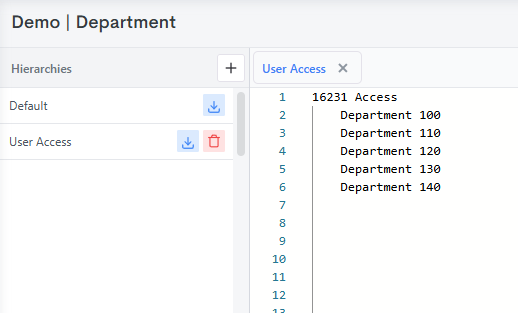
Here, the Department dimension has a "User Access" hierarchy. The user with ID 16231 has a parent element 16231 Access, grouping the five departments that user is permitted to select.
This hierarchy is generally maintained by a process rather than built by hand, since access tends to come from somewhere else in the model (a security cube, a role lookup, group membership) and needs to stay in sync as that changes. Somewhere in that process, security.users() is what actually retrieves the user IDs to build the hierarchy branches for - the shape a process needs to produce is otherwise simple, regardless of where "who can see what" is actually defined:
js
var dim = "Department";     // the dimension the validation is against
var hier = "User Access";   // the hierarchy the validation reads from

function begin() {
    hierarchy.createOrWipe(dim, hier);

    let users = JSON.parse(security.users());

    for (let userId of users) {
        // Look up whatever this user is allowed to see - however access is
        // defined in your model (a security cube, a role lookup, group
        // membership, etc).
        let allowedElements = getAllowedElementsForUser(userId);

        for (let element of allowedElements) {
            hierarchy.group(dim, hier, userId + " Access", element);
        }
    }
}
security.users() returns every user on the client, not just this instance
A process runs on an instance, and an instance is a child of a client (a client is typically split into a Dev instance and a Prod instance, for example). security.users() returns every user on the client - not just the users who actually have access to the instance the process is running on. If access differs by instance, filter the result down to the relevant users (e.g. against an application's user list via security.applicationUsers) before building the hierarchy from it, otherwise the hierarchy ends up with <id> Access branches for users who can't even open this instance's Workviews.
hierarchy.group creates the parent element the first time it's referenced, so there's no separate step to create 16231 Access before grouping elements under it. For a large user base, rebuilding a single user's branch with hierarchy.unwind followed by re-grouping is cheaper than wiping and rebuilding the whole hierarchy on every run - useful when a process is triggered by one user's access changing rather than running on a schedule for everyone.
Step 2: Configure the validation
On the measure being validated, open the Validation tab and use the Formula field rather than a fixed Level or Parent Measure:
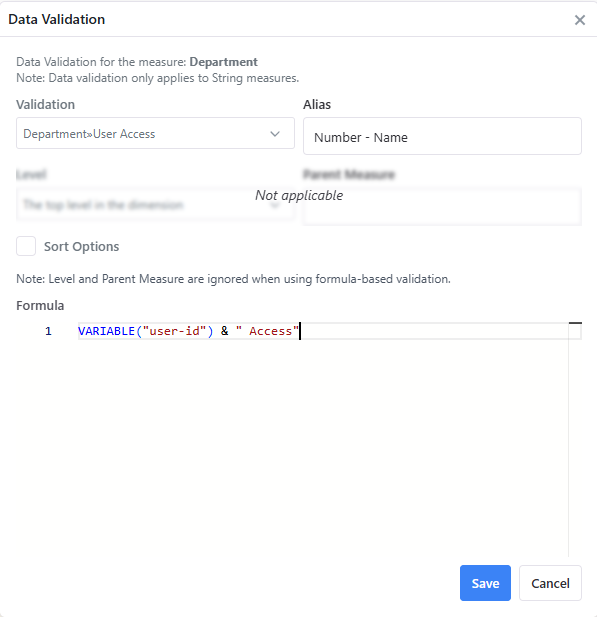
VARIABLE("user-id") & " Access"This resolves, for whoever currently has the Workview open, to the name of their parent element in the hierarchy built in Step 1 - 16231 Access for user 16231, 20144 Access for user 20144, and so on. The validation then presents that parent's children as the dropdown options. No formula change is needed to add a new user - as long as their <id> Access parent exists in the hierarchy, the same rule picks it up automatically.
Where user-id can and can't be used
user-id is a reserved variable holding the current user's ID, read the same way as any other variable via VARIABLE("user-id"). It resolves anywhere the MODLR formula system is evaluated in a user-scoped context - Set Instructions formulas (see Insert Using Formula and Apply Style Using Formula), Validation formulas as above, and Card formulas.
Not available in Cube Formulas
VARIABLE("user-id") does not resolve inside a Cube's own cell formula. Cube formulas calculate a value for the cube as a whole, not for whoever happens to be viewing it, so there's no "current user" for the formula to read. If a cube-level calculation needs to vary by user, that logic belongs in a Set Instruction, a Card, or a validation on the reporting layer instead - not in the cube formula itself.
See VARIABLE for the general function reference.