Data Formatting
Data Formatting instructions set the number format applied to data cells associated with the working list. They're Workview-specific - Cards and Excel handle number formatting at the component/cell level instead, so these instructions are simply skipped outside a Workview.
| Instruction | Format pattern | Example output |
|---|---|---|
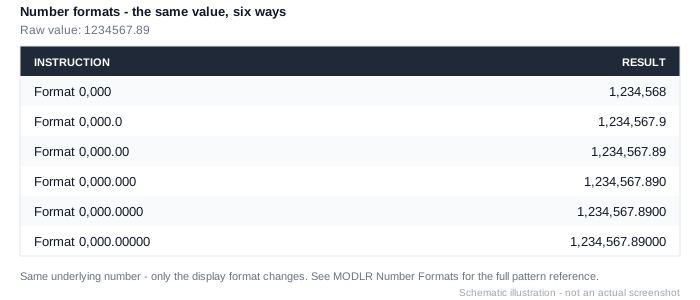
| Format 0,000 | Whole number, thousand separators | 1,234,568 |
| Format 0,000.0 | One decimal place | 1,234,567.9 |
| Format 0,000.00 | Two decimal places | 1,234,567.89 |
| Format 0,000.000 | Three decimal places | 1,234,567.890 |
| Format 0,000.0000 | Four decimal places | 1,234,567.8900 |
| Format 0,000.00000 | Five decimal places | 1,234,567.89000 |
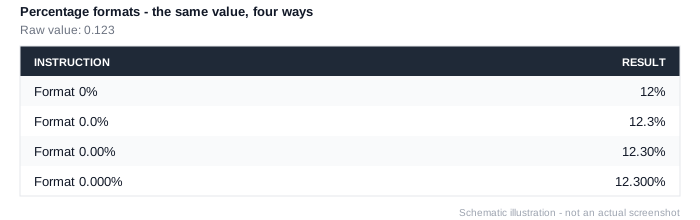
| Format 0% | Percentage, no decimals | 12% |
| Format 0.0% | Percentage, one decimal | 12.3% |
| Format 0.00% | Percentage, two decimals | 12.30% |
| Format 0.000% | Percentage, three decimals | 12.300% |
| Format Items Using The Next Instruction | Applies formatting to only the element(s) the next instruction specifies, rather than the whole working list. | |
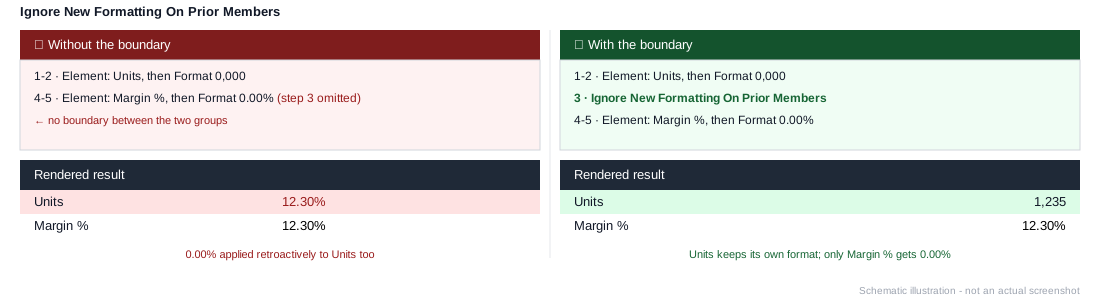
| Ignore New Formatting On Prior Members | A boundary marker - formatting instructions added after this point stop applying to elements added before it. |
For formula-driven formatting - where the format itself depends on the element or context - see Apply Number Formatting Using Formula under Advanced Functions. These ten instructions are named shortcuts for the ten most common patterns in MODLR's underlying format syntax - see MODLR Number Formats for the full pattern reference (including k/m/b abbreviations with no dedicated Set Instruction) and how to reproduce the same formatting in a Card.
A format instruction applies to everything above it, until told otherwise
A Format instruction doesn't just format the element you just added - it applies to the entire working list built so far. In a set with mixed measures (some percentages, some currency), the last format instruction silently overrides any earlier one unless you mark a boundary with Ignore New Formatting On Prior Members:
1. Element: Units
2. Format 0,000
3. Ignore New Formatting On Prior Members
4. Element: Margin %
5. Format 0.00%
Without step 3, the 0.00% format from step 5 would apply retroactively to Units as well, overriding the 0,000 format set in step 2.