
Common Patterns
Set Instructions run in order, top to bottom, against a working list of elements. Each instruction either adds elements to that list or manipulates what's already in it (expanding, sorting, removing, formatting). After an instruction runs, the working list is whatever that instruction left it as - the next instruction operates on that result, not on the original selection.
This is why order matters so much. The same instructions in a different order can produce a completely different set. A few worked patterns below show how that plays out in practice, followed by the mistakes that come from getting the order - or the mental model - wrong.
Pattern 1: Parent-and-children
Show a parent element followed by its immediate children, indented to reflect the hierarchy.
- Element: the parent element (e.g.
Operating Expenses) - Reset Indents
- Expand
Reset Indents strips any indentation the parent selection inherited, so it appears at the leftmost position. Expand then adds the immediate children, indented one level beneath it. The result is a clean parent-child layout with a single level of indentation - the typical shape for a Workview where you want a roll-up next to its detail, without a deeply nested tree.
Pattern 2: Descendants-only, total at the bottom
Show every leaf-level descendant of a parent, then the parent itself as a total row underneath.
- Element: the parent element (e.g.
All Departments) - Expand All
- Remove Consolidations
- Reset Indents
- Element: the same parent element again (
All Departments)
Step 1 brings in the parent. Step 2 expands it to every descendant at every level. Step 3 strips out every consolidation (every parent element), leaving just the leaves. Step 4 removes any indentation those leaves inherited. Step 5 re-adds the original parent at the end of the list, where it now reads as a total row rather than a header.
This is the standard accounting-style layout: every individual line item, with a grand total beneath. Reverse (Subtotals At The Bottom) achieves a similar visual result with fewer instructions when you want every level of subtotal at the bottom of its group, not just the grand total - see the note on ordering below.
Pattern 3: Context-driven dynamic sets in Cards
In Cards, a set can read from the Card's context instead of hardcoding a specific element, so the same set produces a different result depending on what the user has selected elsewhere.
- Insert Element From Title: the dimension to read from context (e.g.
Department) - Expand
This set doesn't hardcode a department. Whatever the Card's Department context is at runtime is what gets inserted, then expanded. If the context is All Departments, the set shows its children; if the context has been narrowed by a Selectable or a click-to-drill action, the set shows the children of whatever the user picked. Insert Using Formula with an ELEMENT("Department") formula is equivalent, and worth reaching for instead when you need conditional logic - e.g. IF(VARIABLE("show-detail") = "Yes", ELEMENT("Department"), "All Departments").
Pattern 4: Filtering with suppression
Show only the elements that actually have data, without manually maintaining a filtered list.
- Element: the parent element
- Expand All
- Remove Consolidations
- Suppress Empty Elements (Except One) or Suppress Zeros
The suppress instruction removes rows or columns with no data from the resolved set. It's the cleanest way to produce a "show only what matters" report without hand-filtering an element list that will drift out of date as new elements arrive.
Pattern 5: Sorting by a measure
Show elements ranked by a calculated value instead of alphabetically - "top 10 products by revenue," or "departments sorted by variance to budget."
- Element: the parent element
- Expand All
- Remove Consolidations
- Sort By Value Using The Next Instruction (Descending)
- A formula instruction, e.g.
LINK("Sales", ["Revenue"])
The sort instruction takes its sort criterion from whatever instruction comes immediately after it - step 5 above is the value provider, not a separate addition to the set.
Common mistakes
Putting instructions in the wrong order. This is the most common source of a set that "isn't working." Remove Consolidations before Expand All produces a different (and usually empty) result than the reverse. When a set doesn't look right, check the order before anything else.
Forgetting the working list flows through the whole stack. Each instruction sees only what the previous instructions left behind, not the original selection. If you're reasoning about "what if I had elements X, Y, Z," walk the instructions one at a time and consider the working list after each step. Use each editor's Preview action to check your assumption rather than guessing.
Hardcoding elements when context would do. In Cards especially, hardcoding a specific element ties the Card to that selection permanently. Reach for Insert Element From Title or Insert Using Formula when the set should respond to the Card's state instead.
Mixing selection logic and display formatting. Some instructions decide what elements appear; others decide how they're displayed (number format, indentation, styling). When a set becomes hard to maintain, it's often because the two are interleaved. Group selection logic at the top of the instruction stack and formatting at the bottom.
Adding too many instructions. A set with twenty instructions is almost certainly doing too much. Consider splitting it into simpler sets, precomputing values in a cube formula, or restructuring the hierarchy so the roll-up happens structurally instead of via instructions.
Instruction ordering gotchas
Reverse must come before Expand. Reverse (Subtotals At The Bottom) only affects expansions that happen after it. Placing it after Expand or Expand All has no effect on an expansion that already happened:
1. Element: EBITDA
2. Reverse (Subtotals At The Bottom)
3. Expand All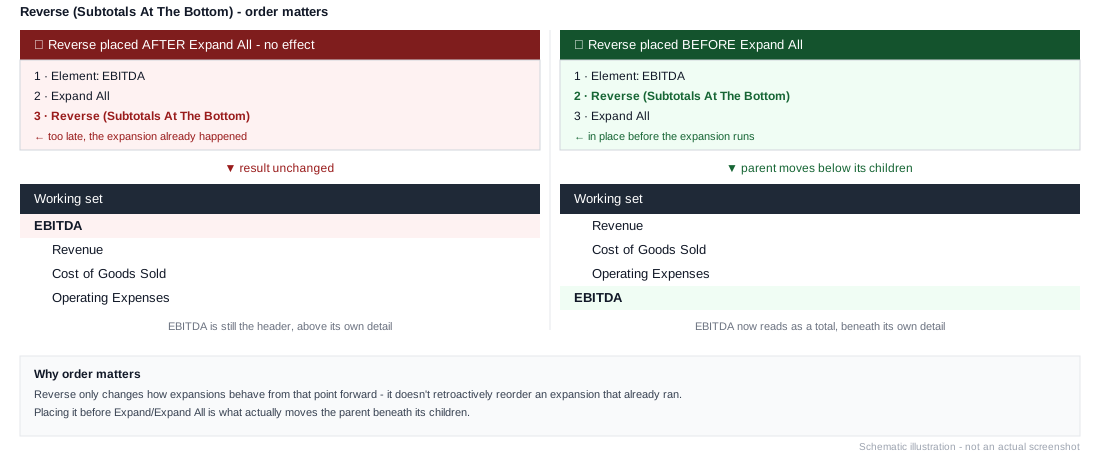
Sort By Value needs a value provider immediately after it. Sort By Value Using The Next Instruction reads its sort criterion from the very next instruction. If that instruction doesn't produce a value - for example, a name-based sort follows it instead of a formula - the sort won't behave as expected.
Format boundaries need Ignore New Formatting On Prior Members. Without it, the last format instruction in a set applies retroactively to every element added before it:
1. Element: Units
2. Format 0,000
3. Ignore New Formatting On Prior Members
4. Element: Margin %
5. Format 0.00%
Without step 3, the 0.00% format would apply to Units too, overriding the 0,000 format set two steps earlier.