
Filtering and Sorting Tables
The Table component supports built-in filtering and sorting of its columns. Filtering and sorting are configured in two places - a master toggle on the table itself, and individual toggles per column - and both only work if the underlying column instructions are set up correctly.
1. Enable Filtering and Sorting on the Table
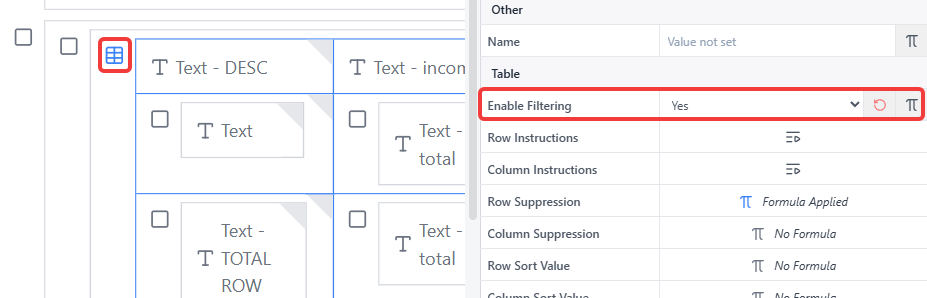
Select the table's root (the grid icon in the top-left corner of the table) to bring up the table's own properties. Under the Table section, set Enable Filtering to Yes. This single table-level toggle enables both filtering and sorting for the table - there's no separate table-level toggle for sorting.
INFO
The per-column Enable Filtering / Enable Sorting toggles (below) are visible and editable regardless of this setting, but neither does anything until this table-level toggle is enabled.
2. Enable Filtering and Sorting per Column
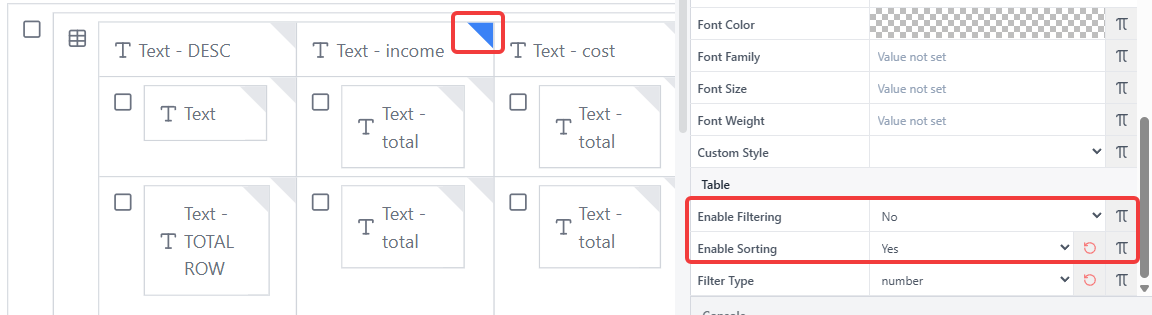
Select the top-right corner triangle of a column's header cell to bring up that column's properties. Under the Table section you'll find:
- Enable Filtering - turns on the filter control for this column
- Enable Sorting - turns on click-to-sort for this column
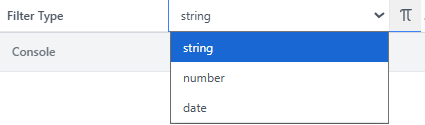
- Filter Type - how the column's values should be interpreted for filtering:
string,number, ordate
INFO
Filter Type also governs how the column sorts, not just how it filters. A string type sorts lexicographically (1, 10, 11, 12, 2, ...), while number sorts numerically (1, 2, 10, 11, 12, ...). If a numeric column is sorting oddly, check that its Filter Type is set to number rather than string.
3. One Dimension per Column
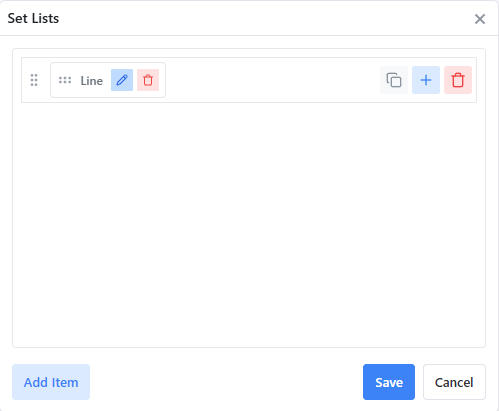
Filtering and sorting only work correctly when a column is generated from a single dimension. In the column's Column Instructions set editor, the instruction should contain only one dimension entry:
TIP
Multiple elements within that one dimension are fine - each element loops out into its own actual column, and each of those columns is individually filterable/sortable.
What breaks filtering is stacking a second dimension into the same Column Instructions entry.
Filtering and Sorting Read from a Direct Cube Reference
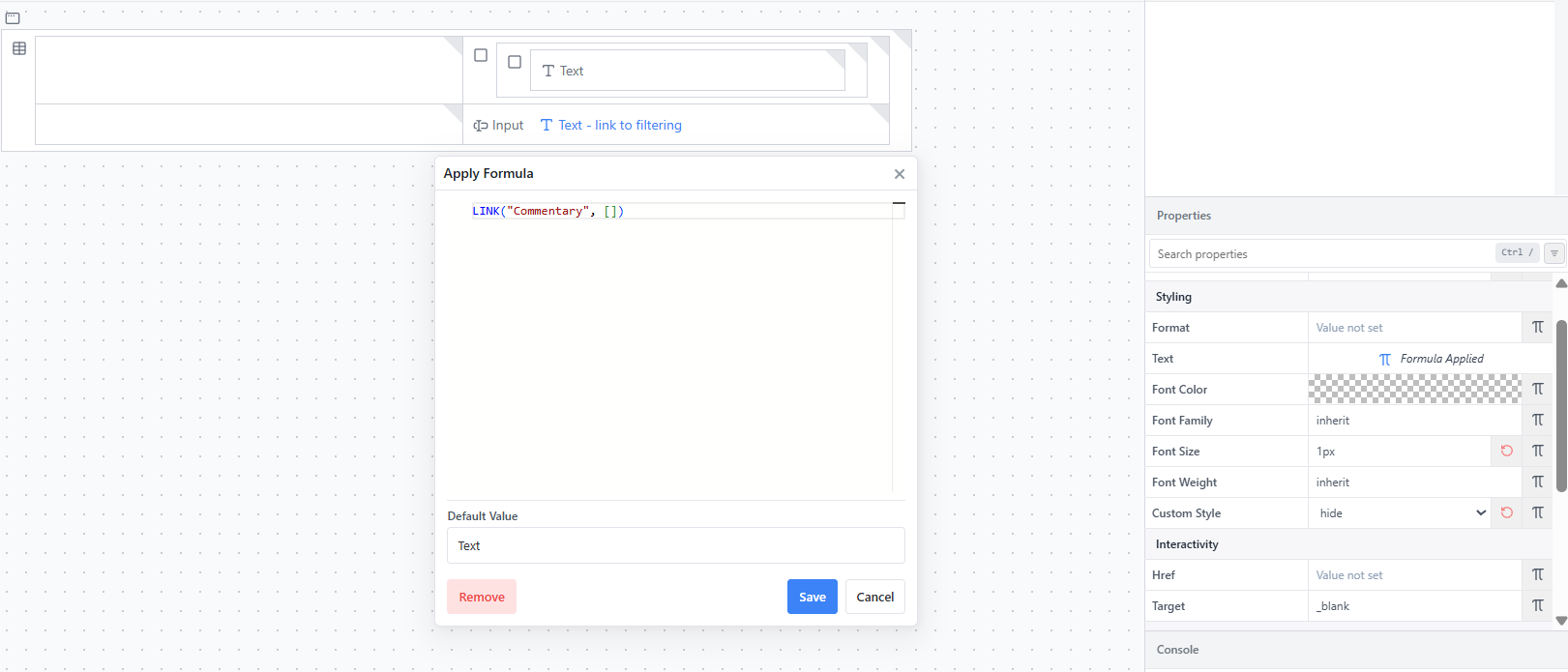
Filtering and sorting both read their value from a Text component's Text property, and that property needs to be a direct LINK to a cube and data - e.g. LINK("Commentary", []). This can be set up via the Insert Data Text right-click helper, but what actually matters is the LINK() formula in the Text property, not the helper itself. If the Text property instead holds a formula, concatenation, or other derived value rather than a direct LINK() to a cube, there's nothing for filtering/sorting to read.
Workaround: filtering on a hidden value
If the value you actually want displayed on the card isn't a direct LINK() - for example, an Input component the user interacts with, rather than a Text component - add a second, separate Text component into the same cell whose Text property is a direct LINK() to that cube's data. Then attach a hide Custom Style (e.g. display: none) to that Text component so it's not visually shown, while it still supplies the value filtering/sorting reads from.
In the example below, the visible content of the cell is an Input component. Alongside it sits a hidden Text component (named descriptively, e.g. "Text - link to filtering", so it's easy to identify later) whose Text property holds LINK("Commentary", []), with its Custom Style set to hide:
See Card Styles for how to build and attach a style like this.