Debugger
The debugger component is a developer tool used to trace card errors and review context, variables and formulas.
The debugger component is used in the backend card editor only and does not appear in the frontend version of cards.
To use the debugger:
- Drag the debugger component into the area where errors are present.
- Preview the card.
- Click on the red Debugger button that appears in the Card Preview panel.
Because the debugger reports on the area it sits in, where you place it matters - drop it inside the specific cell or container you're investigating, not at the top of the card.
What the debugger shows
From here you can explore different areas of a card and how formulas interact with them in more detail:
| Section | Shows |
|---|---|
| Dimensions | The dimensional context of the selected area. |
| Variables | The variables that exist in this area, and the values they're currently set to. |
| Formula Evaluation | How a given formula evaluates against the chosen area. |
Formula Evaluation has two tabs:
- Overview - how the formula interacts with the dimensions and variables relative to the area.
- Trace - a step-by-step breakdown of how the formula arrives at its output value.
Common use cases
Values not appearing in a table cell
To display a cube value in a card table cell, every dimension in the cell location must align. Compare the location of the value you expect against the dimensions the debugger reports for that area - this brings shadow dimensions to light and shows what needs changing.
The dimensions shown are the context of the area only. Individual components can alter the cube location through their own properties, so account for those too: copy the formula that alters a component's location into the debugger and check the resulting dimensions in the overview.
A formula not applying to cell properties
Paste the problematic formula into the debugger and use Trace to break down how it applies to the cell step by step. That shows where the formula stops behaving as expected, so it can be corrected.
Worked example: a background colour that won't apply
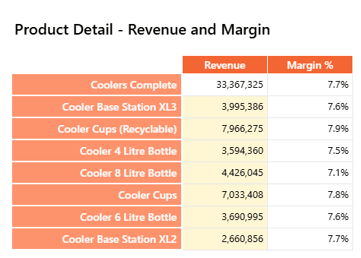
The goal is a yellow background on cells at the Revenue sales measure, at the lowest level of granularity in the Product dimension. The first attempt uses this formula:
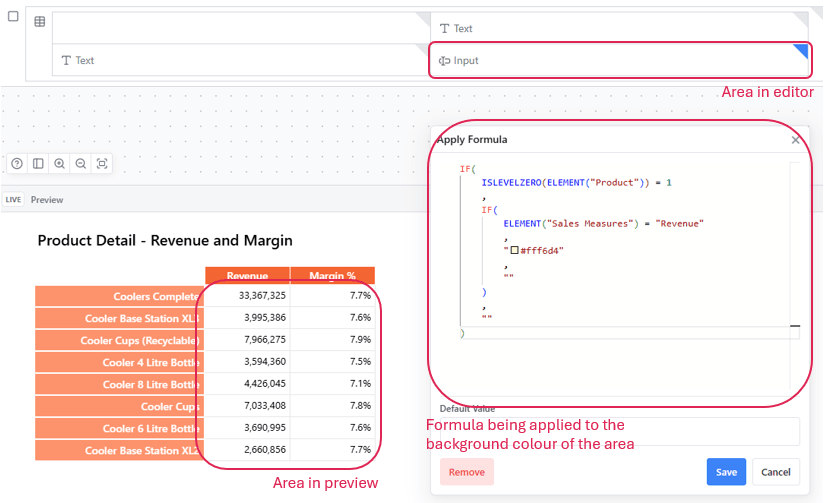
Refreshing the card shows the formula isn't applying, and there are no console errors - so a debugger goes into the cell to see how the formula actually evaluates.
Picking a cell that should have evaluated to yellow, opening the debugger there, pasting in the formula and switching to Trace gives the answer:
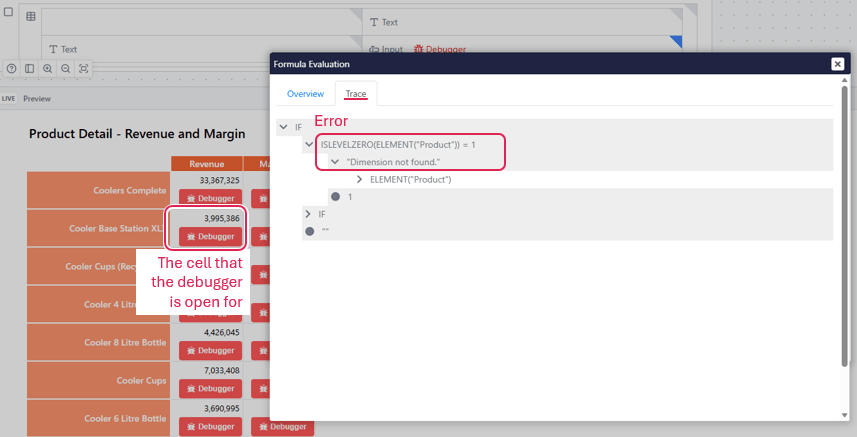
The trace reports "Dimension not found." against ISLEVELZERO(ELEMENT("Product")). Product is a dimension and is in the card's context, which points at the syntax rather than the model - ISLEVELZERO needs the dimension named as its first argument.
Correcting it to ISLEVELZERO("Product", ELEMENT("Product")) and running it through the debugger again:
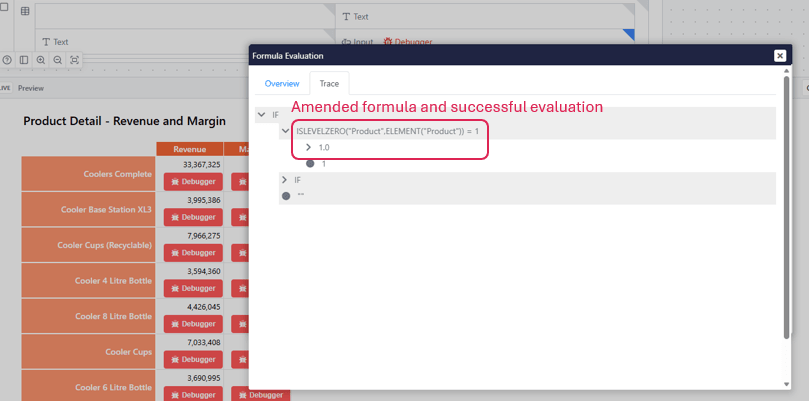
The cell now evaluates to the expected result in the debugger, and in the card preview once refreshed: