
AliasSet
Set the value of an alias for an element in a dimension. AliasSet is the write counterpart of AliasGet.
js
AliasSet(aliasValue, modelName, dimension, aliasName, elementName)Parameters
aliasValue- The value to save as the element's alias.modelName- The name of the model that contains the dimension.dimension- The dimension that contains the element.aliasName- The identifier of the alias to be set.elementName- The identifier of the element whose alias will be set.
Model name, not application name
AliasSet is the only MODLR Excel Add-in function that takes the model name. Every other function takes the application name.
Example
js
AliasSet("Canada (Docs)", "Sales Training", "Location", "Name", "Canada")This sets the "Name" alias of the element "Canada" in the "Location" dimension of the "Sales Training" model to "Canada (Docs)". The cell returns TRUE once the alias has been saved.
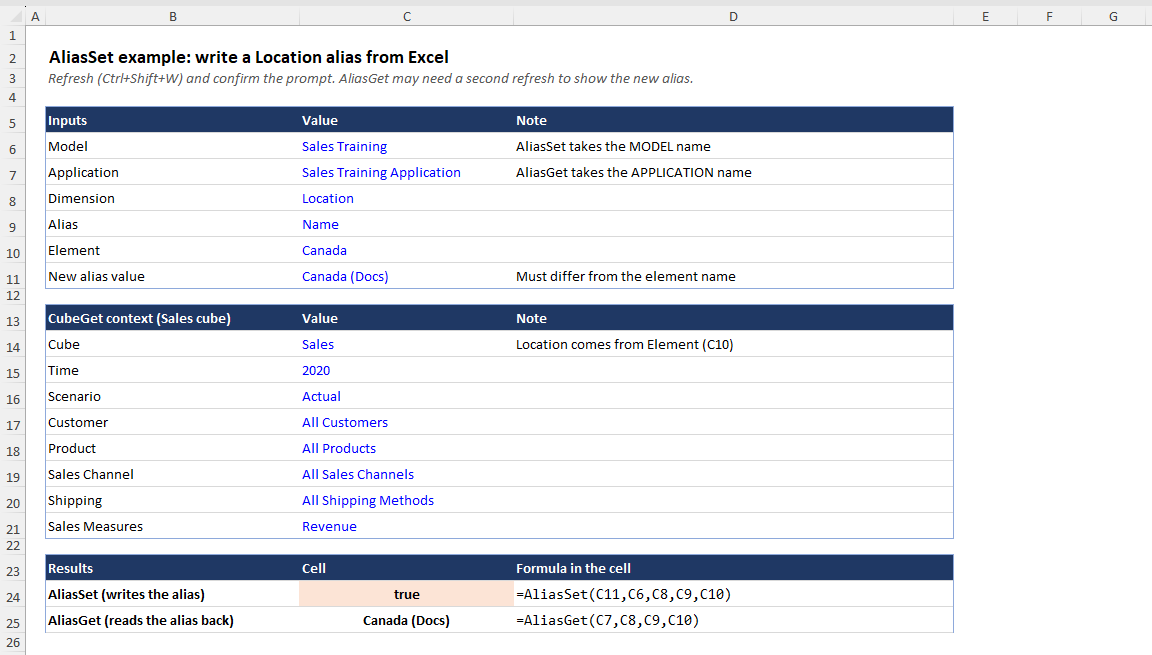
When the alias is written
Like CubeSend, AliasSet only writes during a refresh. Before any write happens, the refresh shows a Confirm Refresh prompt.
To control when writes happen, wrap AliasSet in an IF that checks a switch cell, as described in Practice safe sends:
js
=IF(WritesEnabled, AliasSet("Canada (Docs)", "Sales Training", "Location", "Name", "Canada"), "writes off")While the switch is off, the refresh does not write the alias and the Confirm Refresh prompt is not shown.
Limitations
- An alias cannot be set back to the element's own name. For example, setting the "Name" alias of "Canada" to "Canada" does not change it, so AliasSet cannot be used to clear or remove an alias. Use MODLR in the browser to do this.