Automating with VBA
The Refresh Worksheet and Refresh Workbook commands can be called from a VBA macro, so a refresh can be part of a larger automated task.
Refreshing from a macro
Call either refresh with Application.Run:
vb
Application.Run "RefreshWorkbook"
' or
Application.Run "RefreshWorksheet"
The refresh runs in the background, so the line after Application.Run may run before the refresh has finished. Do not put code that depends on the refreshed values directly after the call.
Running code after a refresh
Put code that depends on the refreshed values in a macro named MODLR_AfterRefresh in the workbook. The MODLR Excel Add-in checks for this macro and runs it once a refresh has finished.
vb
Public Sub MODLR_AfterRefresh()
    ' runs after a MODLR refresh
End Sub
Prompts during a refresh
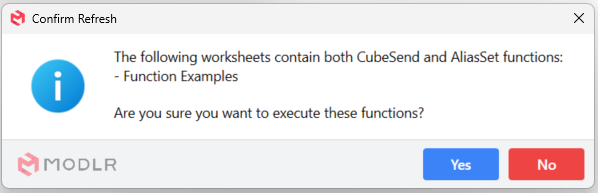
A refresh started from VBA shows the same prompts as one started from the ribbon. Take these into account when a macro is meant to run without anyone at the computer:
- Confirm Refresh - shown when the refresh includes a write from a CubeSend or AliasSet. Turning writes off with a switch cell, as described in Practice safe sends, means the prompt is not shown.
- Error prompts - shown when a cell fails, for example a VariableGet with a variable name that does not match. These can appear even when the refresh includes no writes.