
How to run Cards in Excel
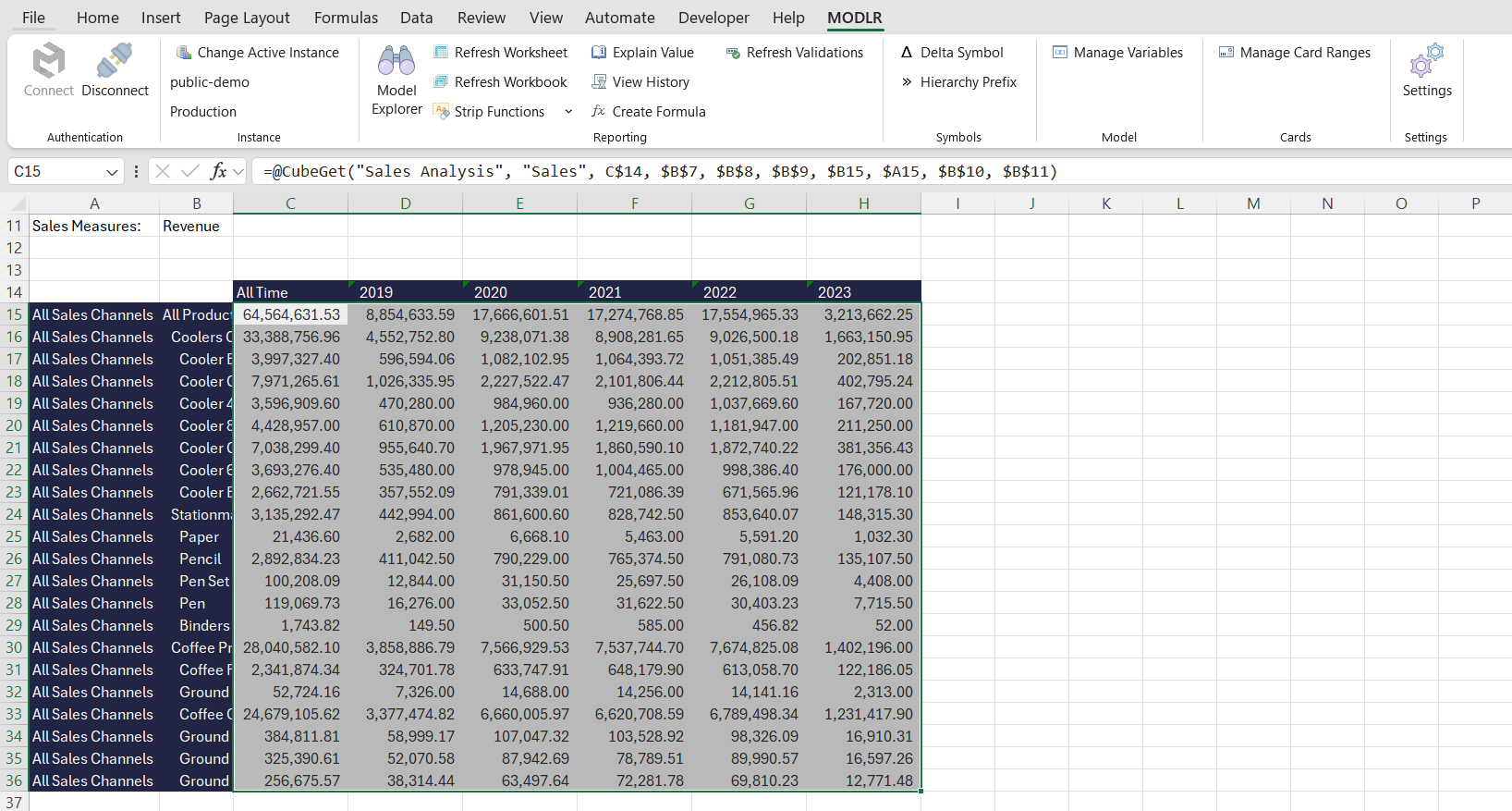
- Highlight the range you would like to allow a card to be executed against.
TIP
This only works from cells containing a simple CubeGet, e.g. =CubeGet(args). It won't work if the CubeGet is wrapped in other logic, e.g. =IF(check, CubeGet(args), otherOutcome).
The context from the CubeGet is passed to the card when it runs. For example, if the CubeGet references the time element "2026 - Jan", the card will execute with a time context of "2026 - Jan".
- Right click the selected range and open the MODLR menu, then click Add Card to Range.
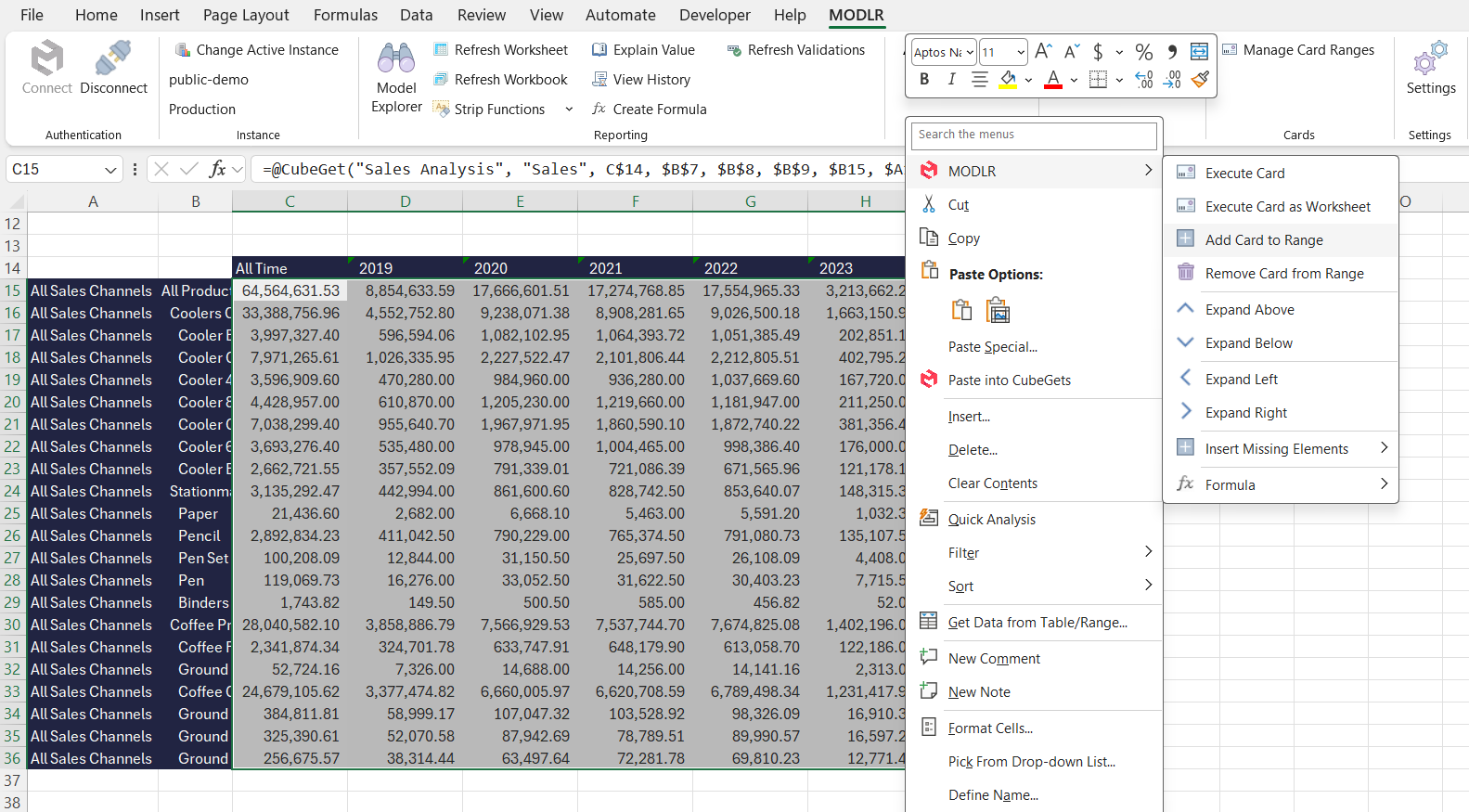
- The Card is now ready to be run in this Excel workbook.
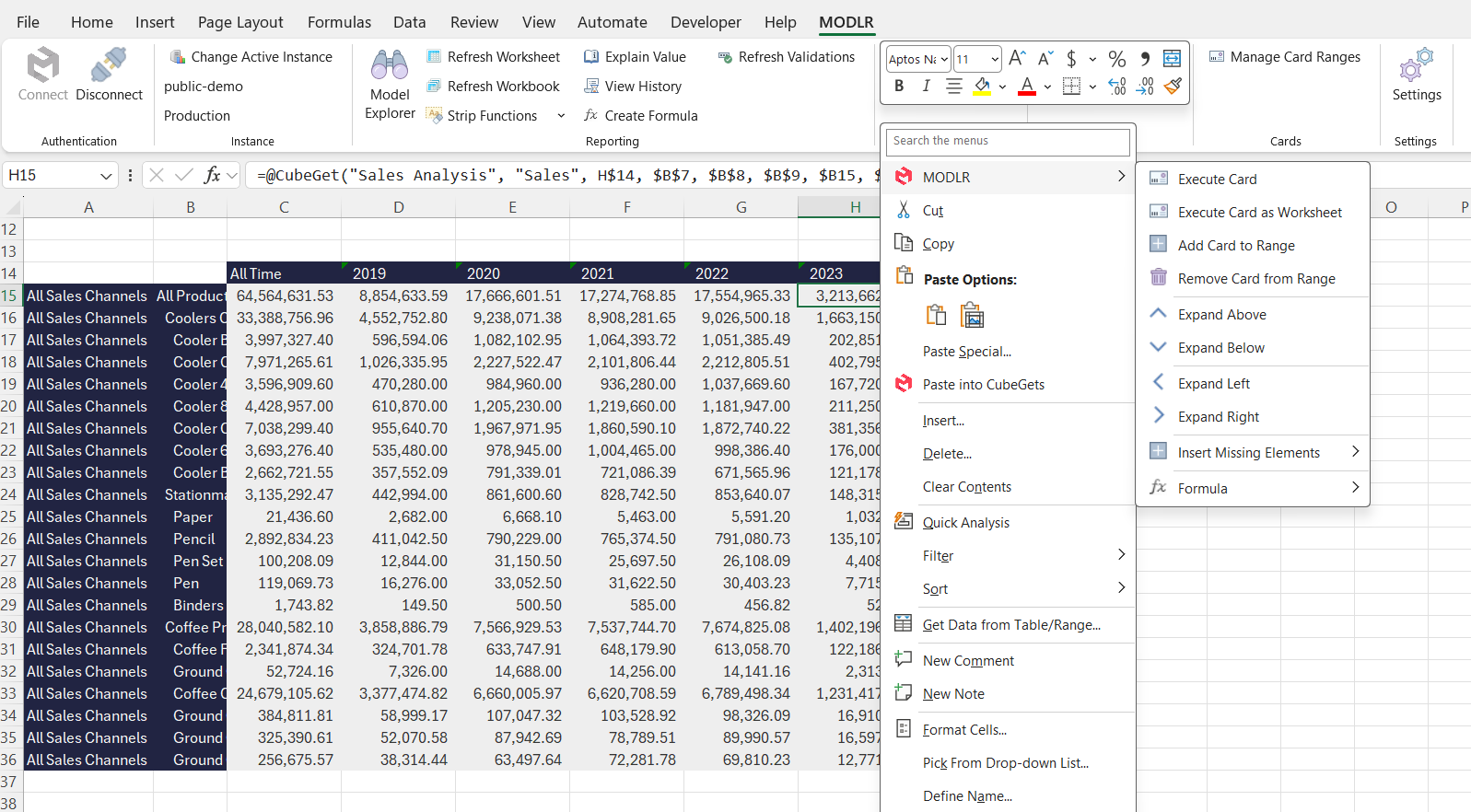
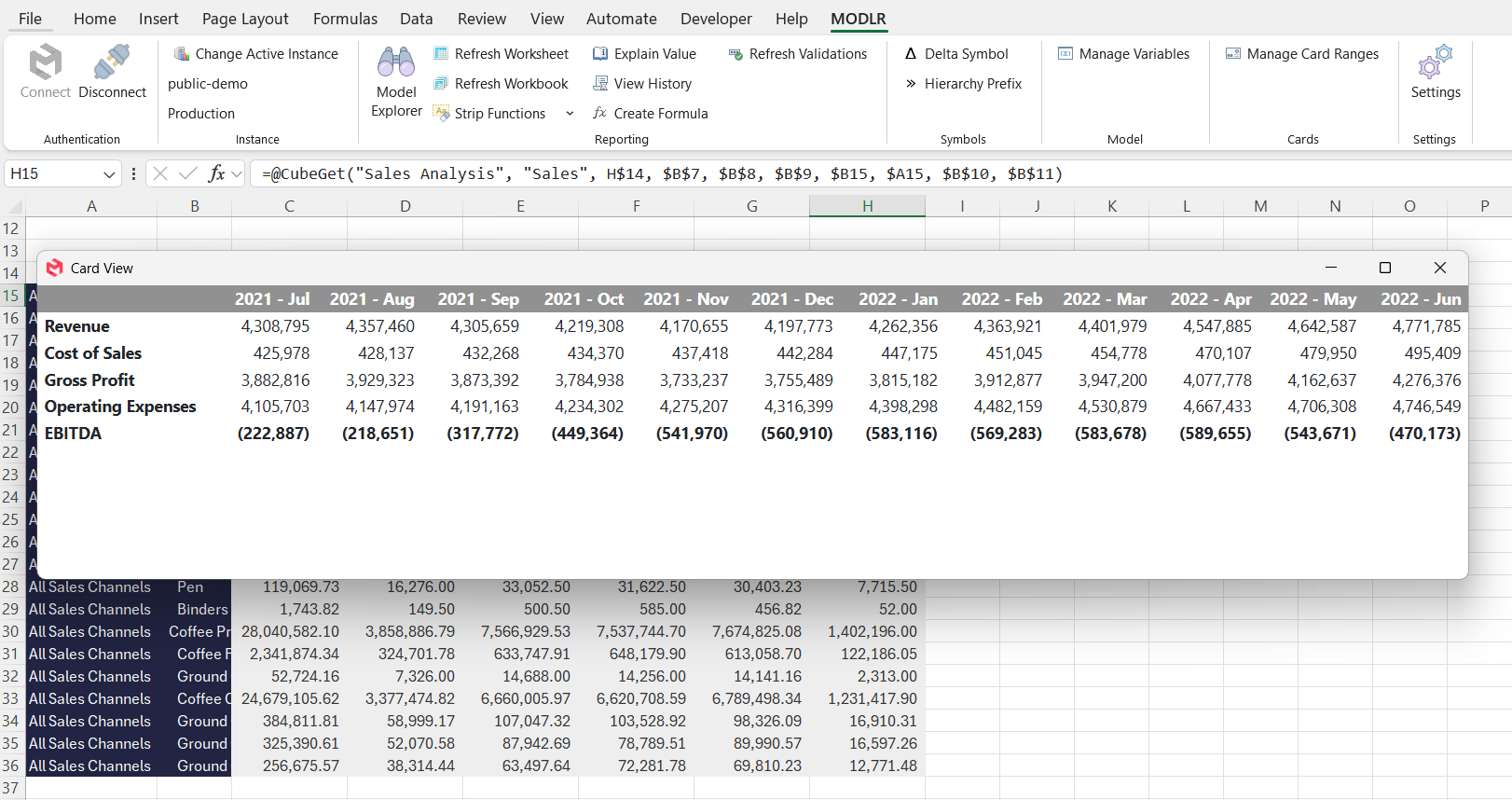
- To run the card, right click on one of the cells in the range and open the MODLR menu, then click Execute Card. This will render the card in a popup window, the same as it would appear in the MODLR Gateway or Frontend.
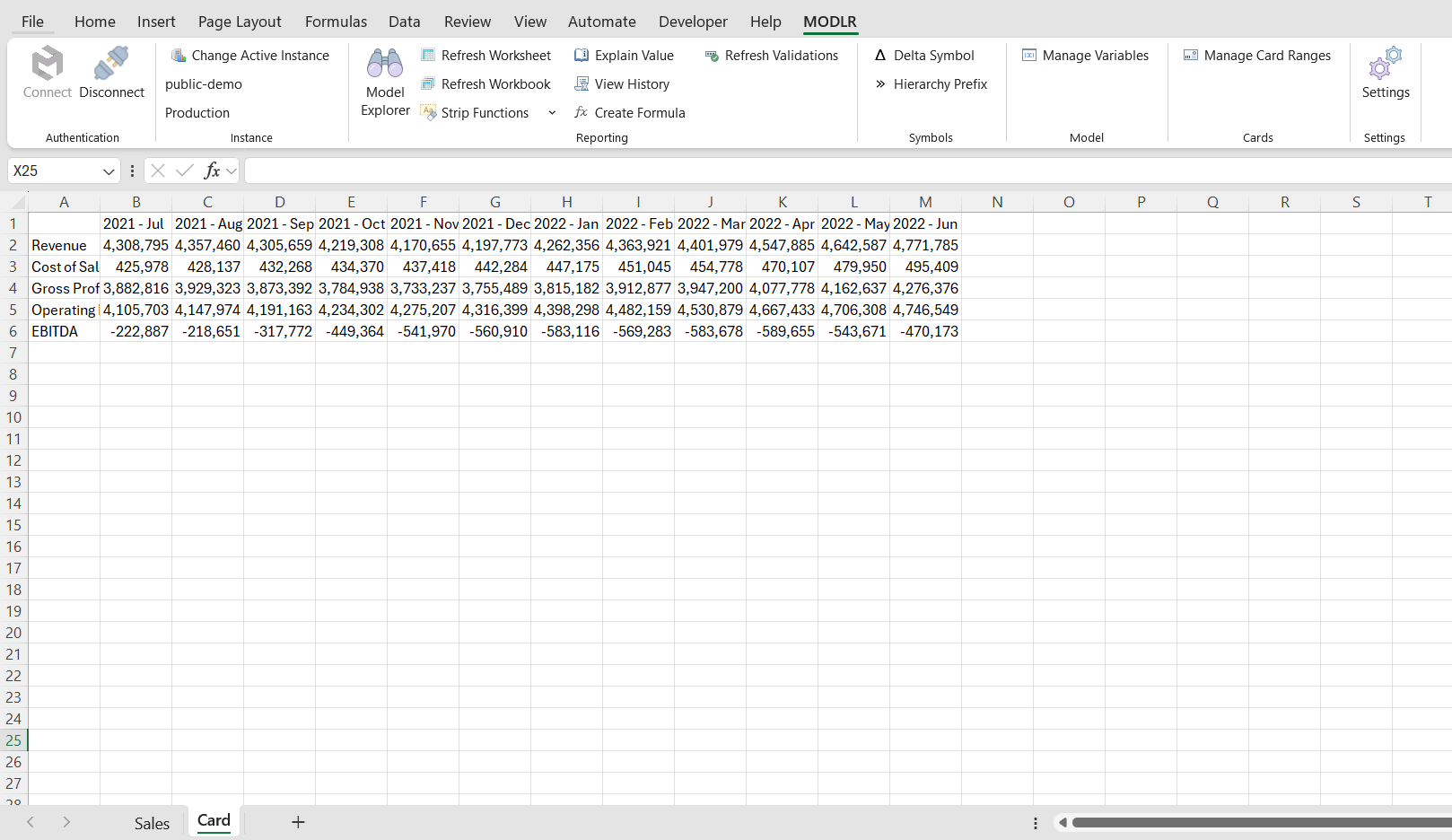
- Alternatively, click Execute Card as worksheet. Where possible, the card will open in a new tab in your current workbook, and data from the card will appear directly in the Workbook.
TIP
If the card selected contains a table component, you can select Execute Card as worksheet to dump the card table contents into a new sheet on your Excel file.
Related entries: Cards in Excel, Cards Guide