
Using Images and Static Files
A custom page often needs a static file the browser can load directly, such as a logo, a background image or a downloadable PDF. These files have to be uploaded to the instance's web file manager over SFTP. After that, the page can reference them at:
https://{instance}.modlr.cloud/assets/external/{file}Why the File Manager doesn't work
Uploading a file through the File Manager in Gateway and then referencing it from a page will fail. For example:
js
const brandUrl = '/brand.jpg'; // won't loadThe File Manager browses the internal filesystem, which is used by Processes, Cards and the MODLR Filesystem datasource. Files there are not served to the browser, so no URL leads to them. The web application reads its files from a separate filesystem, and that one is only reachable over SFTP with the sftp_web account.
| Internal filesystem | Web filesystem | |
|---|---|---|
| Used by | Processes, Cards, datasources | The browser, through custom pages |
| How to upload | File Manager, or SFTP as sftp_user | SFTP as sftp_web |
| Reachable by URL | No | Yes, under /assets/external/ |
Step 1: Open the FTP ports and enable the service
The FTP ports are open by default. Follow Accessing Files via FTP to ask the MODLR Team to open them for your instance, and choose SFTP as the protocol. Then go to Server Monitor, open the FTP tab, and check that the Status card shows Online. If it doesn't, click Enable.
Step 2: Get the sftp_web credentials
The SFTP card on the same FTP tab shows the host, the port and both accounts. You need sftp_web. Click the eye icon to reveal its password, or the copy icon to copy it.
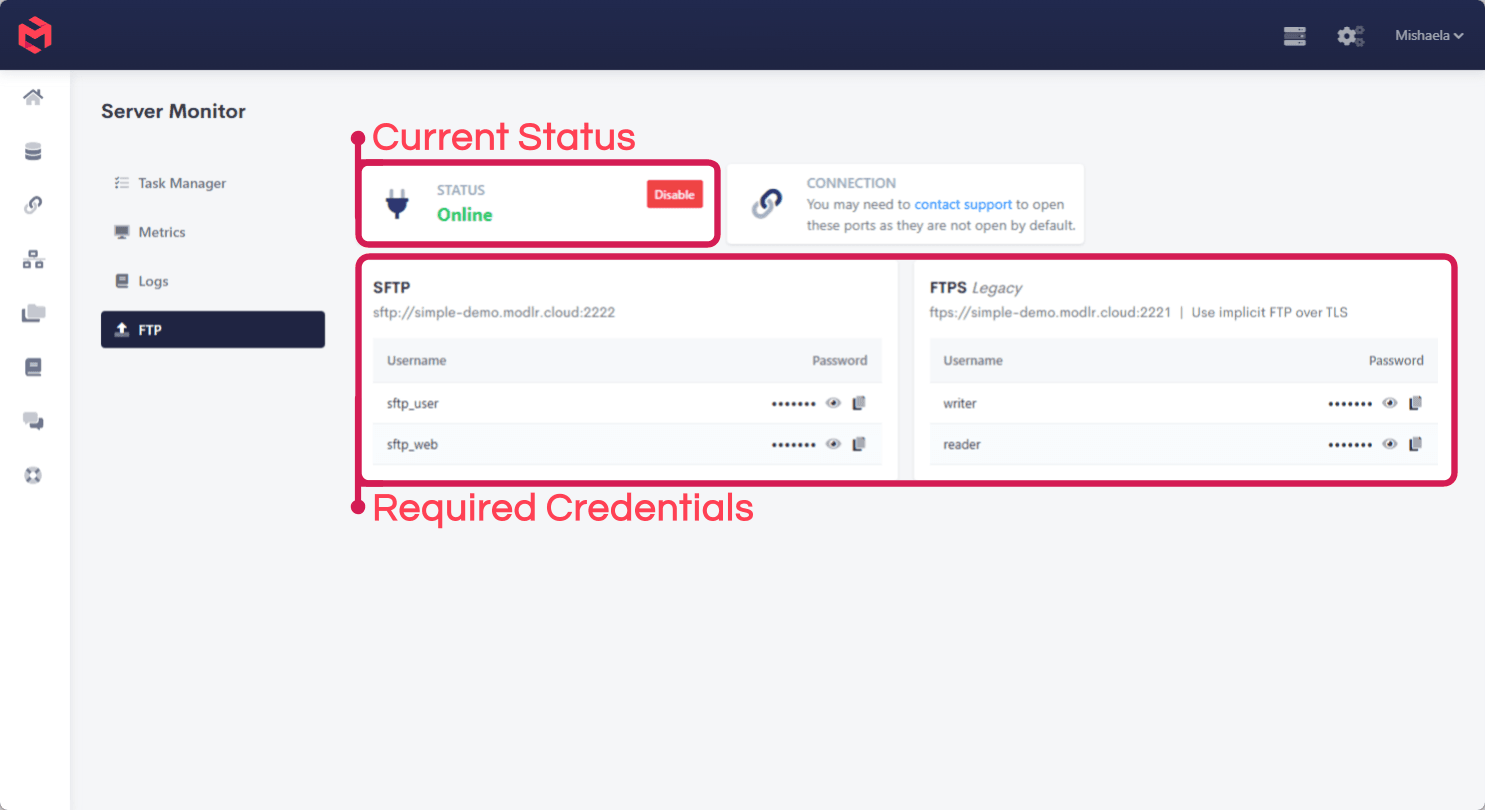
Use sftp_web, not sftp_user
sftp_user connects to the internal filesystem, which is the same place the File Manager shows. Anything you upload with it has the same problem as above: the browser can't reach it.
Step 3: Connect and upload the file
Connect with any SFTP client, such as FileZilla or WinSCP, using:
| Setting | Value |
|---|---|
| Protocol | SFTP |
| Host | {instance}.modlr.cloud |
| Port | The port shown on the SFTP card, for example 2222 |
| Username | sftp_web |
| Password | The sftp_web password from the SFTP card |
Or from a terminal:
sh
sftp -P 2222 sftp_web@public-demo.modlr.cloud
sftp> put brand.jpg
Upload the file into the directory you connect to.
Step 4: Reference the file from your page
The file is now available at https://{instance}.modlr.cloud/assets/external/{file}. On an instance called public-demo, a file uploaded as brand.jpg is at:
https://public-demo.modlr.cloud/assets/external/brand.jpgUse that URL wherever the page needs the file:
html
<img src="https://public-demo.modlr.cloud/assets/external/brand.jpg" alt="Logo" class="app-brand">The same goes for a value set in script:
js
const brandUrl = 'https://public-demo.modlr.cloud/assets/external/brand.jpg';Check the URL first
Open the URL in a browser tab before wiring it into a page. If the file doesn't show there, the page can't load it either. Check that you uploaded it as sftp_web and that the file name matches exactly, including case.
Related
- SFTP - connection details and the two SFTP accounts
- Accessing Files via FTP - opening the ports and enabling the service
- File Manager - the internal filesystem, for files used by Processes and Cards
- External Assets - registering third-party JavaScript and CSS libraries for an application